What is Storage mode?
A drive in Storage mode is a specially formatted and directly connected drive that is used as an encrypted or unencrypted container for storing image files in E01, AFF4, or RAW formats. E01 and AFF4 files can be compressed. You can image several evidence devices to target files on Storage simultaneously.
Set up new Storage
To create multiple target images on a directly connected drive, you must format the device for Storage mode using TaskForce 2 beforehand.
For the best imaging performance, TaskForce 2 creates a single exFAT partition with a 32 MB cluster size when formatting for Storage mode.
To store image files in an encrypted form, you can select a VeraCrypt container instead of a simple exFAT partition.
Use a drive in Storage mode
TaskForce 2 automatically detects and mounts a device formatted as Storage. If a drive is already in Storage mode, plug it into one of the TaskForce 2 drive ports and use it to store target image files.
The drive in Storage mode is marked with a special blue icon on the Select target devices panel. An LED status indicator of the respective drive port on the TaskForce 2 front panel also turns blue.
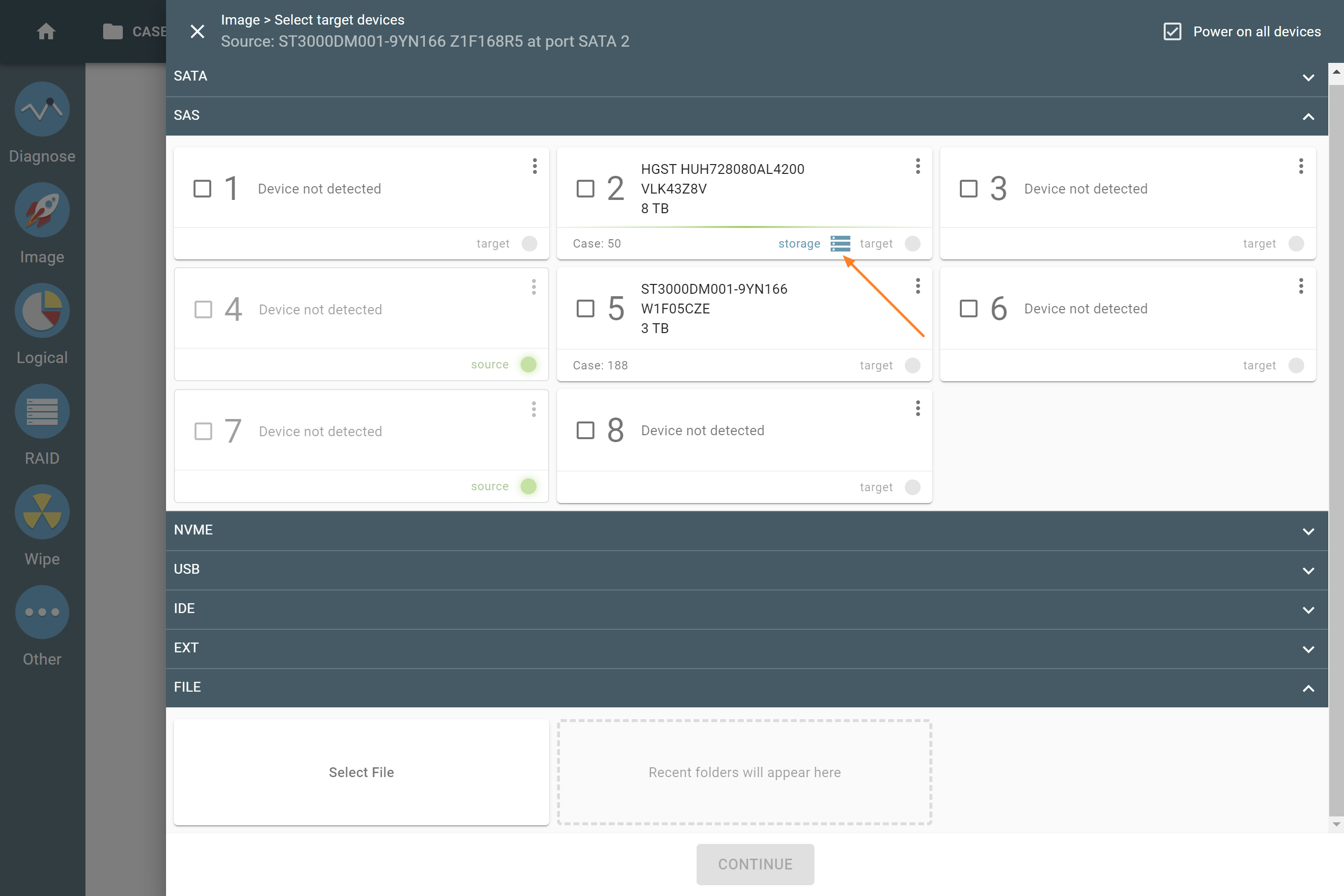
A drive in Storage mode.
When the target drive is in Storage mode, it can only be used as a container for image files (E01, AFF4, or RAW). The software protects you from accidentally using a Storage drive for sector-to-sector imaging.
To learn more about imaging to Storage, see the following articles:
