Image a remote drive using the iSCSI protocol
Some devices can’t be plugged directly into the TaskForce hardware unit for imaging. These could be drives soldered into a motherboard, servers that can't be turned off, or devices you have legal access to but lack the right to seize.
To image such devices remotely with TaskForce, use the iSCSI network protocol.
The recommended way to expose drives on the remote machine is the free Atola Boot Image. For custom Linux environments, you can use the standalone iscsi-targets script instead.
Recommended: Use Atola Boot Image
Boot the remote PC or server from a USB stick with the Atola Boot Image. It automatically:
- Write-protects all internal drives, including soldered eMMC storage, except the boot device
- Exposes those drives as iSCSI targets on the network
- Displays the system IP address on the screen
Then connect to that IP from TaskForce and image the remote drives as described below.
For custom Linux environments, use the standalone iscsi-targets script
To expose a physical or logical drive via iSCSI on a network in a custom Linux setup, you can use the Python script named iscsi-targets, which automatically creates iSCSI targets for all drives except the boot device.
Download iscsi-targets from GitHub →
Features of the ‘iscsi-targets’ script
- Automatically creates iSCSI targets for all drives except the boot device.
- Ensures that the iSCSI Qualified Name (IQN) of every iSCSI target includes the drive model and serial number. When you add such an iSCSI target in Atola imagers as a source drive, the imager’s software automatically extracts the model and serial number from the IQN into the case details.
- Supports soldered eMMC storage (/dev/mmcblk*) in addition to SATA, NVMe, and USB drives.
- Lets you specify a block device as a script argument to create an iSCSI target only for that device.
What you need to run the ‘iscsi-targets’ script
The script runs on Linux only. It was tested on various distributions such as Ubuntu, Fedora, CentOS, and RHEL, including DFIR boot environments like Paladin, Caine, and Tsurugi.
- Python 3.6 or higher must be installed.
-
On the first run, the script automatically checks for and installs two required dependencies:
- targetcli
- python3-rtslib
How to use the ‘iscsi-targets’ script
Here are some examples of using the ‘iscsi-targets’ script.
-
Create iSCSI targets for all drives except the boot device:
`sudo python3 iscsi-targets.py` -
Create a single iSCSI target for the specified /dev/sdb1 partition:
`sudo python3 iscsi-targets.py /dev/sdb1`
The example below shows the first run of iscsi-targets.py on Paladin. It has added 3 iSCSI targets for SATA and USB drives.
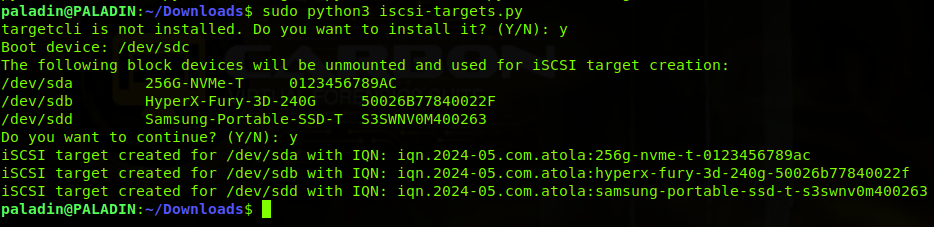
Automated iSCSI target creation in Paladin.
Image remote drives in parallel using iSCSI
To image a remote drive in TaskForce using the iSCSI protocol, follow these steps:
- Expose a physical or logical drive via iSCSI on a network (recommended: boot image; alternative: iscsi-targets script).
- In the TaskForce window, click Image.
- Scroll down to the Remote section and click Connect iSCSI target.
- Enter Target IP or DNS and Target port. If needed, also enter a username and password for remote authentication.
- Click Discover.
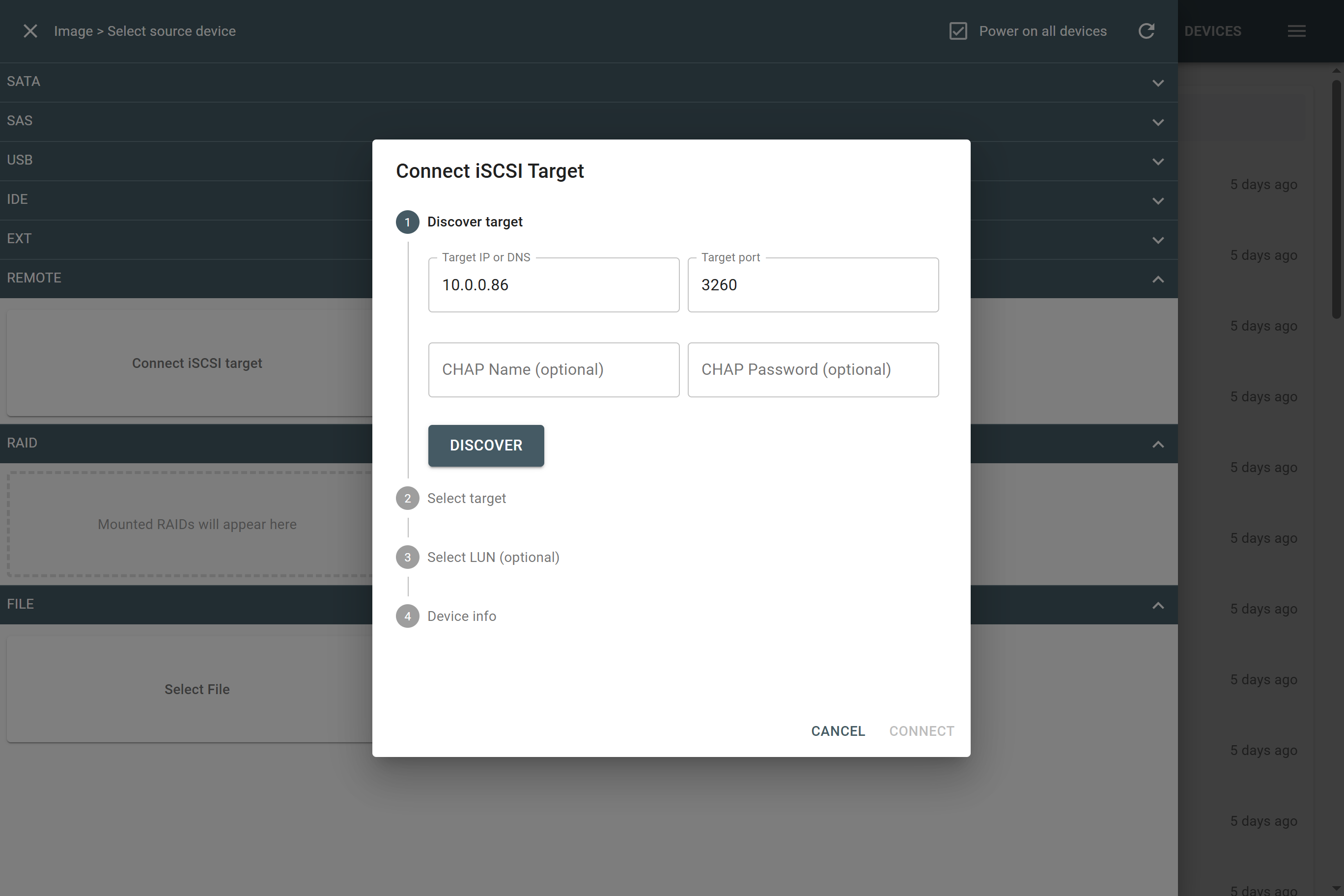
Discovering the iSCSI target.
- TaskForce searches for and lists all iSCSI devices available at the IP address and port you provided. Select your iSCSI target, enter a username and password if required, and click Login.
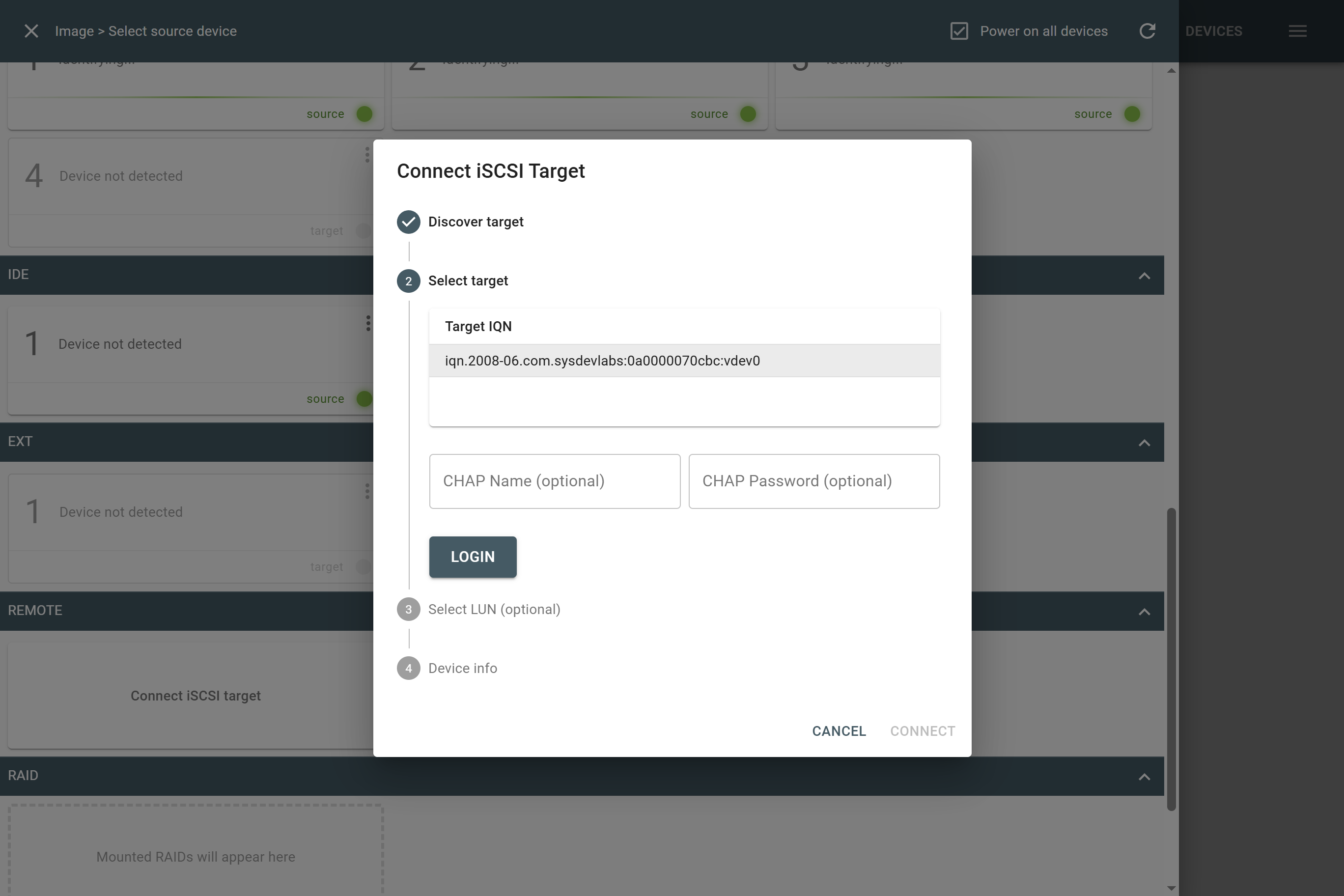
Selecting the iSCSI target.
- Optional: Select the LUN if multiple devices are exposed.
- Enter or correct the device model and serial number.
- Click Connect.
- TaskForce opens the selected iSCSI device as a source. You can now image this device as usual.
