Manage user profiles locally
When the multi-user mode is on, user profiles can be stored and managed locally, in the TaskForce's work folder.
Enable local User management
The first profile that you create after enabling User management has an Admin role.
To enable the multi-user mode with the local user management, do the following steps:
- In the Atola TaskForce window, go to Menu > Settings.
- In the Users section, toggle User management.
- Select Local.
- Enter the username and password for the administrator’s profile, and then click Create.
Now you can add, edit, or delete other user profiles.
After you enable User management, Express mode is disabled for security reasons.
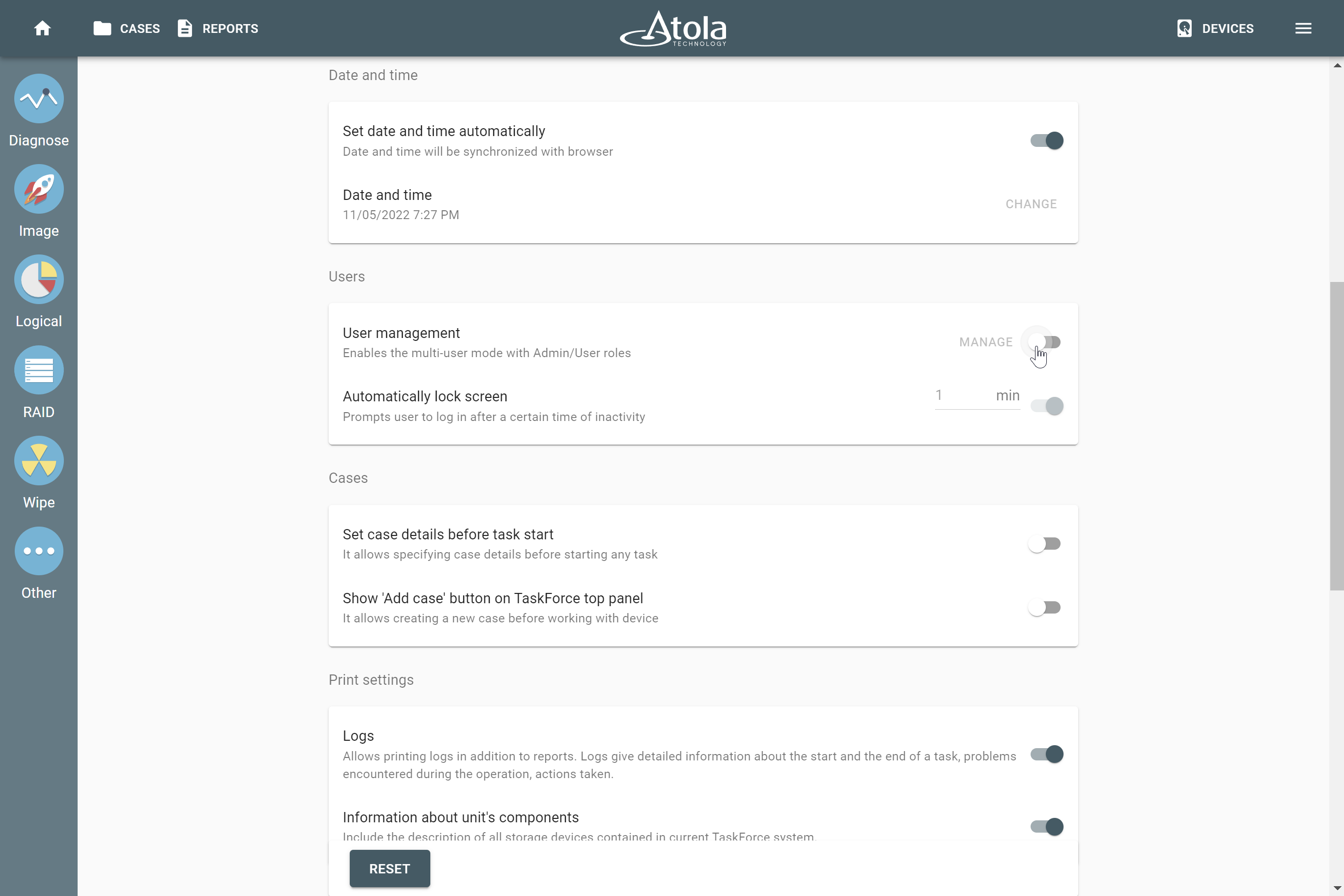
User management toggle in the Users section of the Settings menu.
Add, edit, or delete users
Only Admin can add, edit, or delete other user profiles with either Admin or User role.
Add a user
To add a user, do the next steps:
- Log in to a profile that has the Admin role.
- In the Atola TaskForce window, go to Menu > Settings.
- In the Users section, click Manage.
- On the Users page, click Create user.
- Enter the username and password for a user.
Optional: To grant this user an Admin role, select the Admin checkbox. - Click Create.
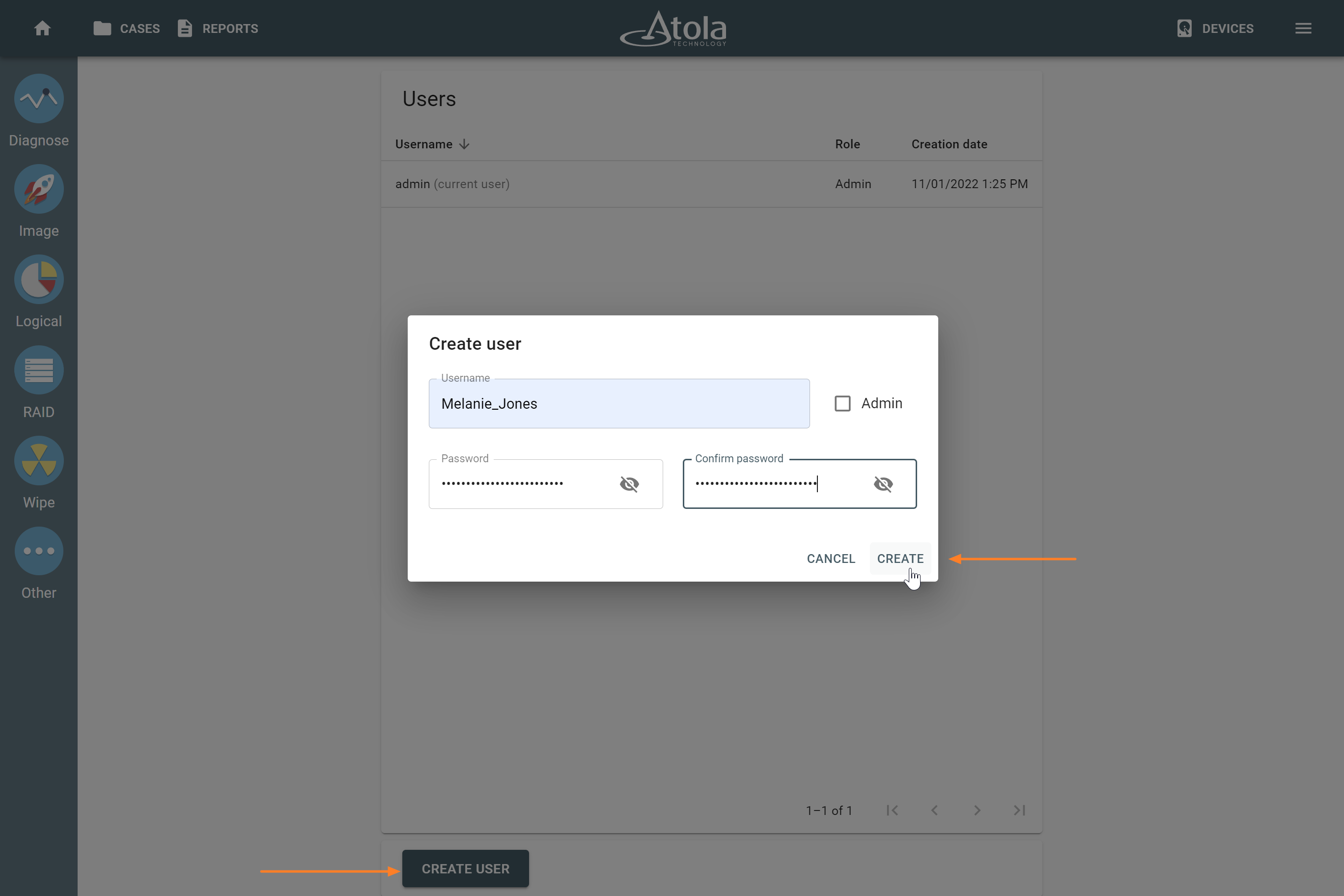
The Create user button and dialog.
Edit a user
To edit a user, do the following:
- Log in to a profile that has the Admin role.
- In the Atola TaskForce window, go to Menu > Settings.
- In the Users section, click Manage.
- On the Users page, select a user you want to edit.
- In the Edit user dialog, edit the username.
Optional: To grant this user an Admin role, select the Admin checkbox. - Click Save.
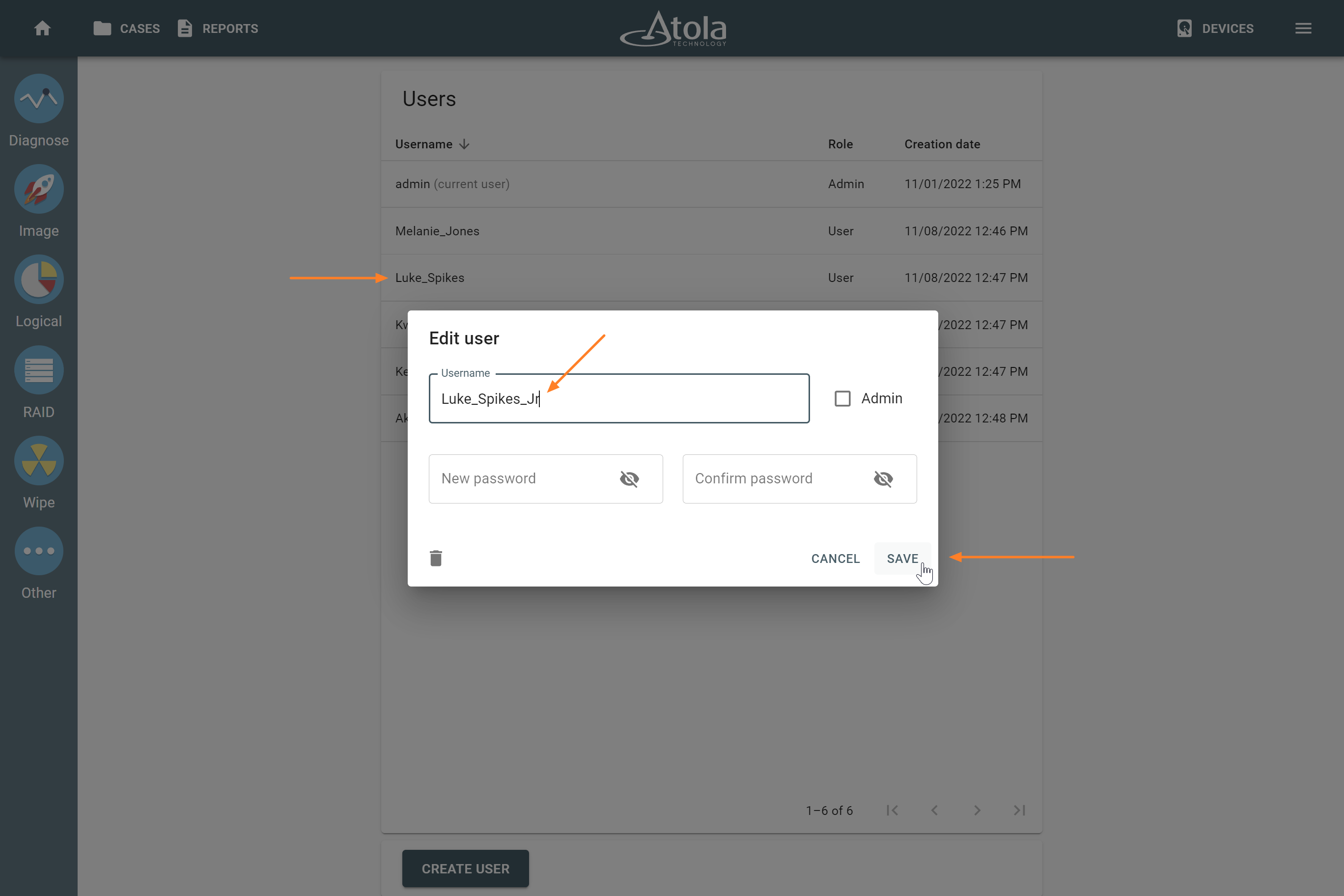
The Edit user dialog.
Delete a user
After deleting a user, you can still access their cases and reports under a profile with the Admin role.
To delete a user, do the following steps:
- Log in to a profile that has the Admin role.
- In the Atola TaskForce window, go to Menu > Settings.
- In the Users section, click Manage.
- On the Users page, select a user you want to delete.
- In the Edit user dialog, click the Delete icon.
- In the confirmation dialog, enter YES, and then click Delete.
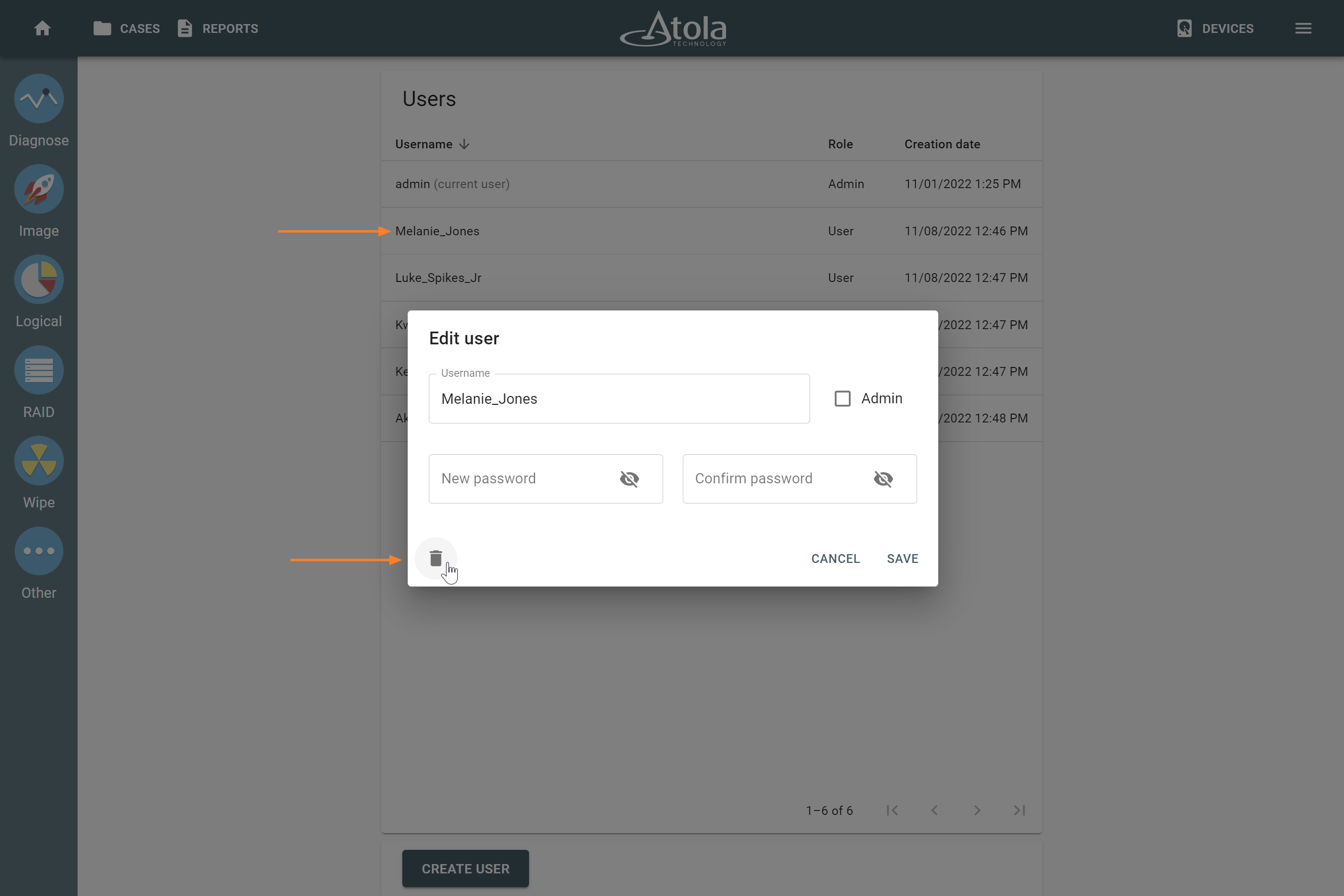
The Delete icon in the Edit user dialog.
Change the password
As a User, you can change only your password. As an Admin, you can change other users' passwords as well.
Change the password for your profile
To change the password for your profile, go to Menu > Change your password, enter your current and new passwords and click Save.
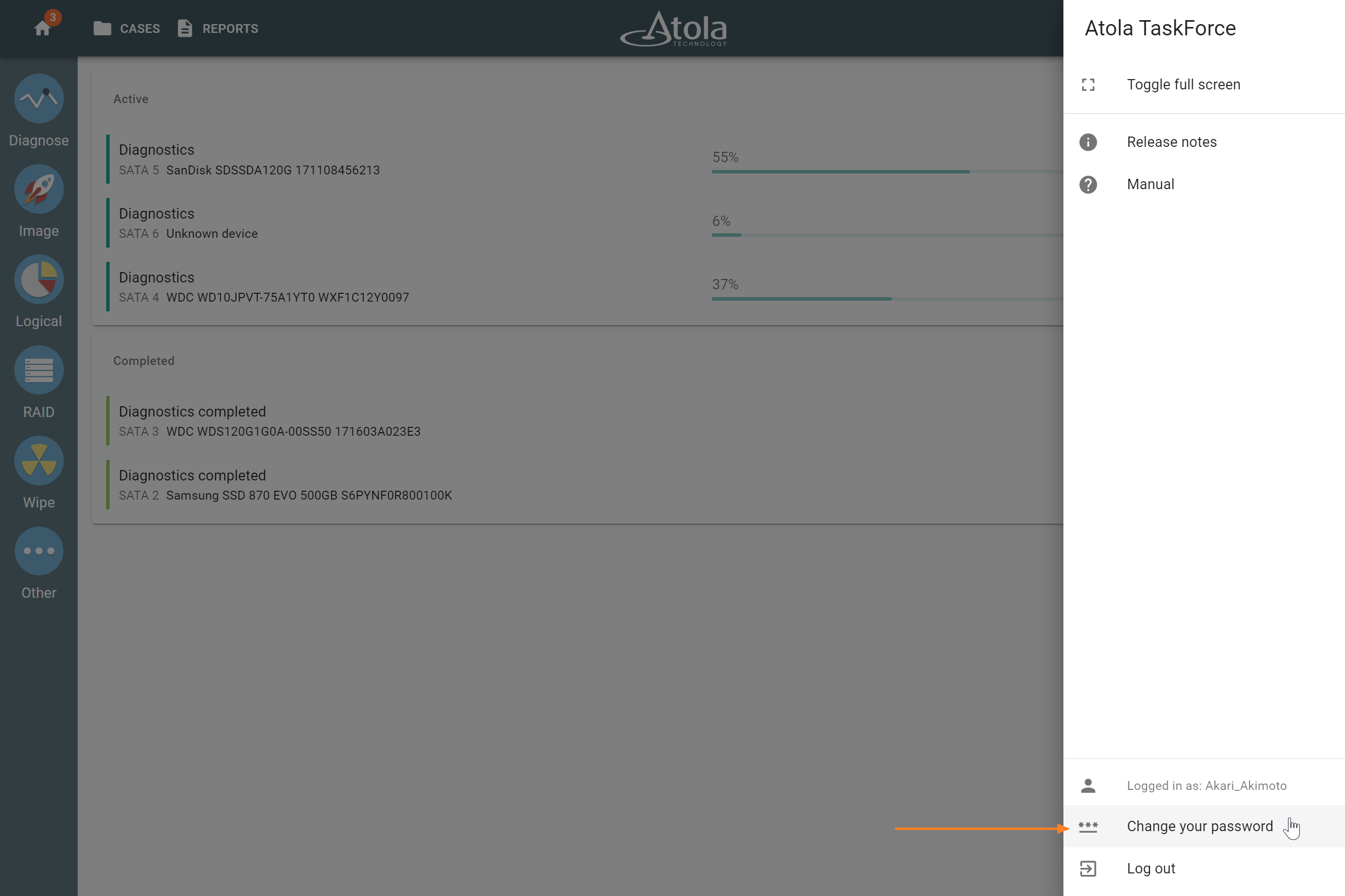
Change your password command in the Menu.
Change the password for another user as an administrator
To change the password for another user, do the following:
- Log in to a profile that has the Admin role.
- In the Atola TaskForce window, go to Menu > Settings.
- In the Users section, click Manage.
- On the Users page, select a user you want to change the password for.
- In the Edit user dialog, enter a new password, confirm the password, and then click Save.
If you forgot or don’t know the password for an administrator profile on your TaskForce, contact Atola Support.
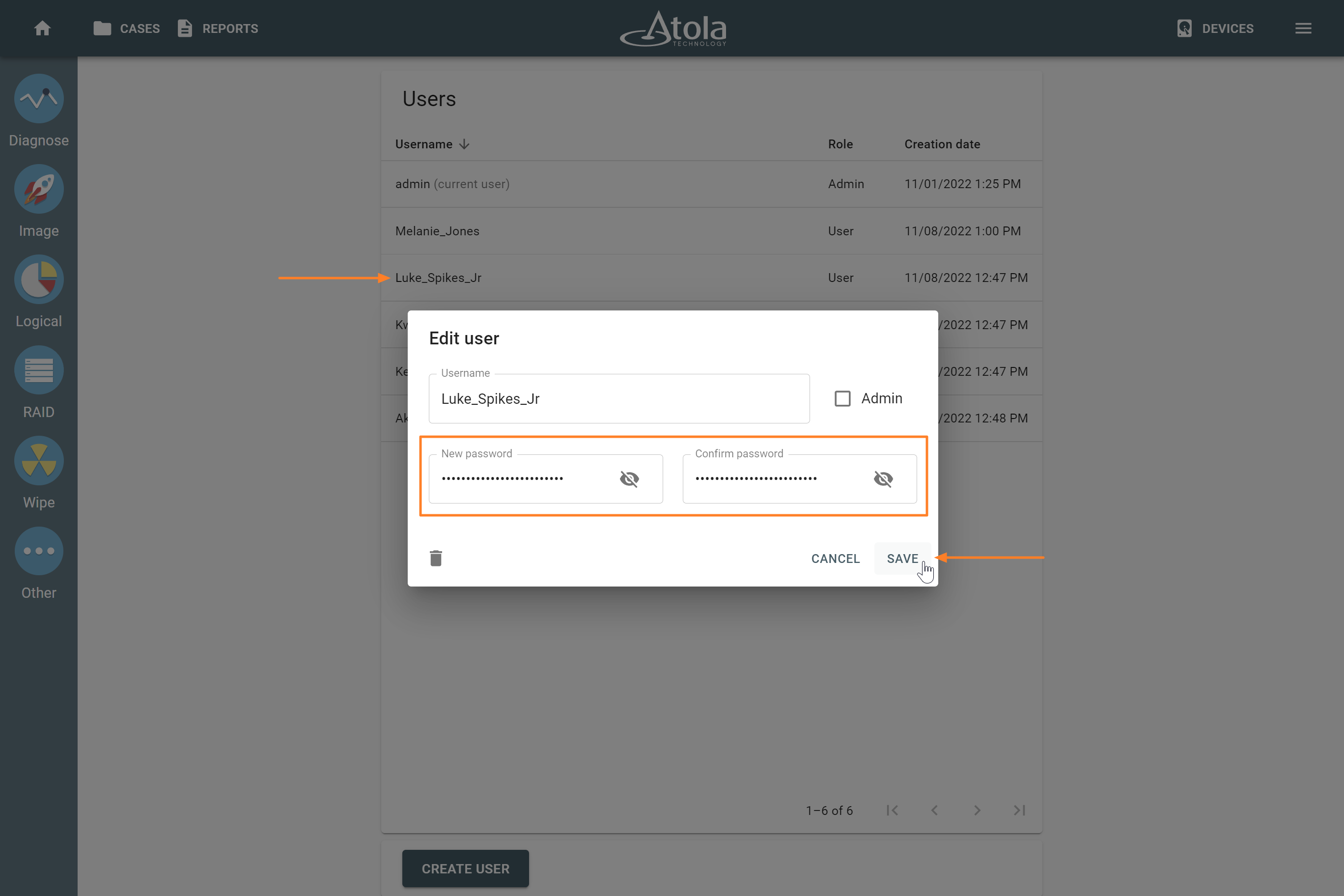
Changing a user password in the Edit user dialog on the Users page.
