Logical Imaging
Acquiring complete bit-by-bit copies of multi-terabyte evidence devices can take hours and hours.
Logical imaging feature in Atola Insight Forensic saves you a lot of time in such cases: it creates a forensically sound target image with only selected partitions, folders or files.
The resulting L01 file also includes unaltered metadata, such as file attributes and creation dates, as well as hashes calculated during the imaging process.
Key features
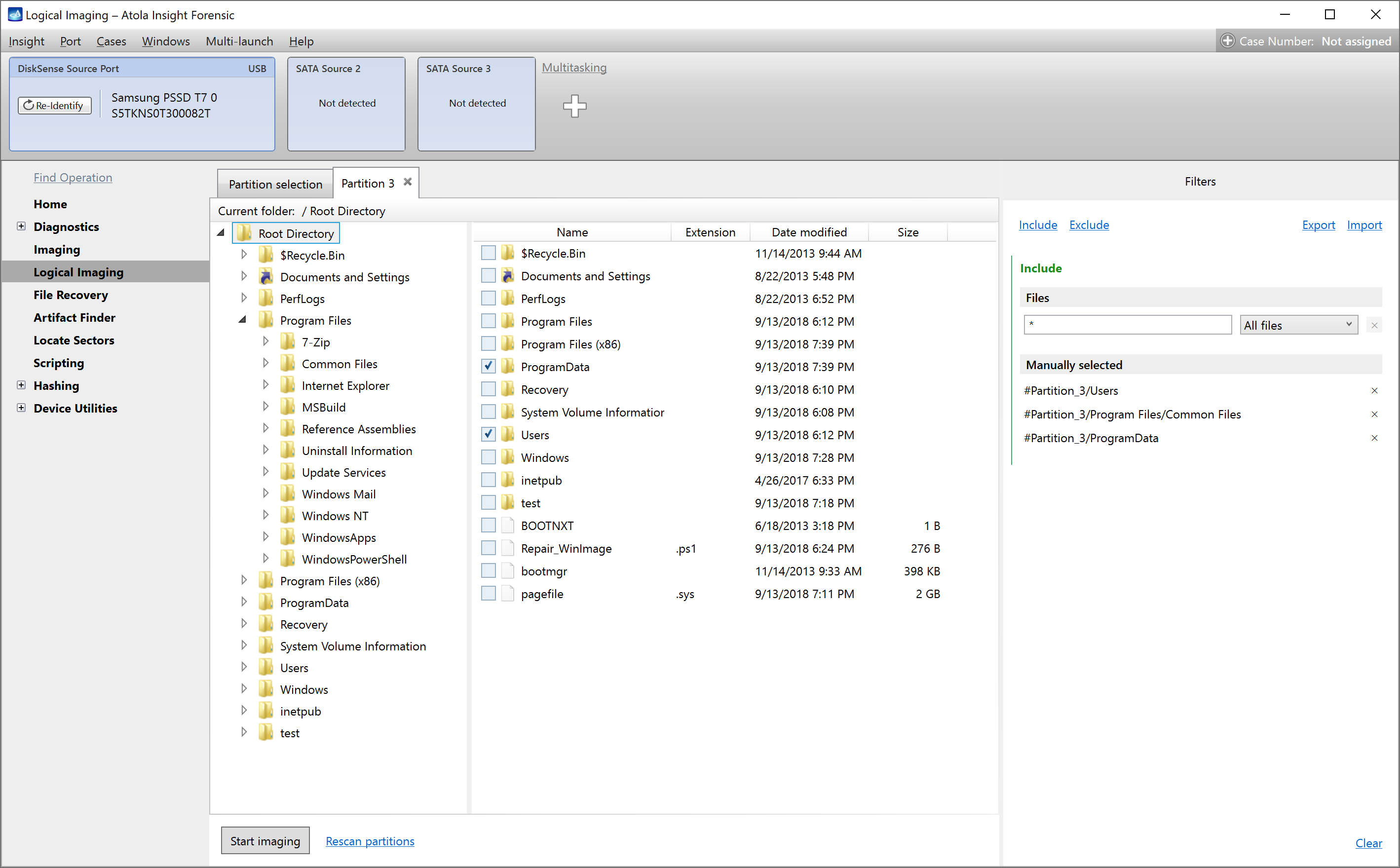
- Smart include and exclude filters
- L01 format for target image file
- Compression of L01 image file
- Up to 3 parallel logical imaging sessions
- Pause and resume option for each imaging session
- Support for all popular device types and file systems
- Check button to verify selected file filters
Sources
As a source for logical imaging, you can use:
-
Physical drives, connected directly or via extension modules
- SATA
- USB
- IDE
- NVMe via M.2 extension module
- SAS via SAS extension module
- MacBook drives via Apple PCIe SSD or Thunderbolt extension modules
- Image files from a Source drive
- RAW
- E01
- AFF4
Supported file systems
Insight’s Logical imaging module fully supports the following file systems:
- NTFS, APFS, XFS, ext4/3/2, exFAT, Btrfs, HFS/HFS+, FAT32, FAT16.
Targets
Insight Forensic provides versatile options for target file location:
- Local PC
- Remote network drive
- Storage drive, directly connected to the Insight hardware unit
Smart filters
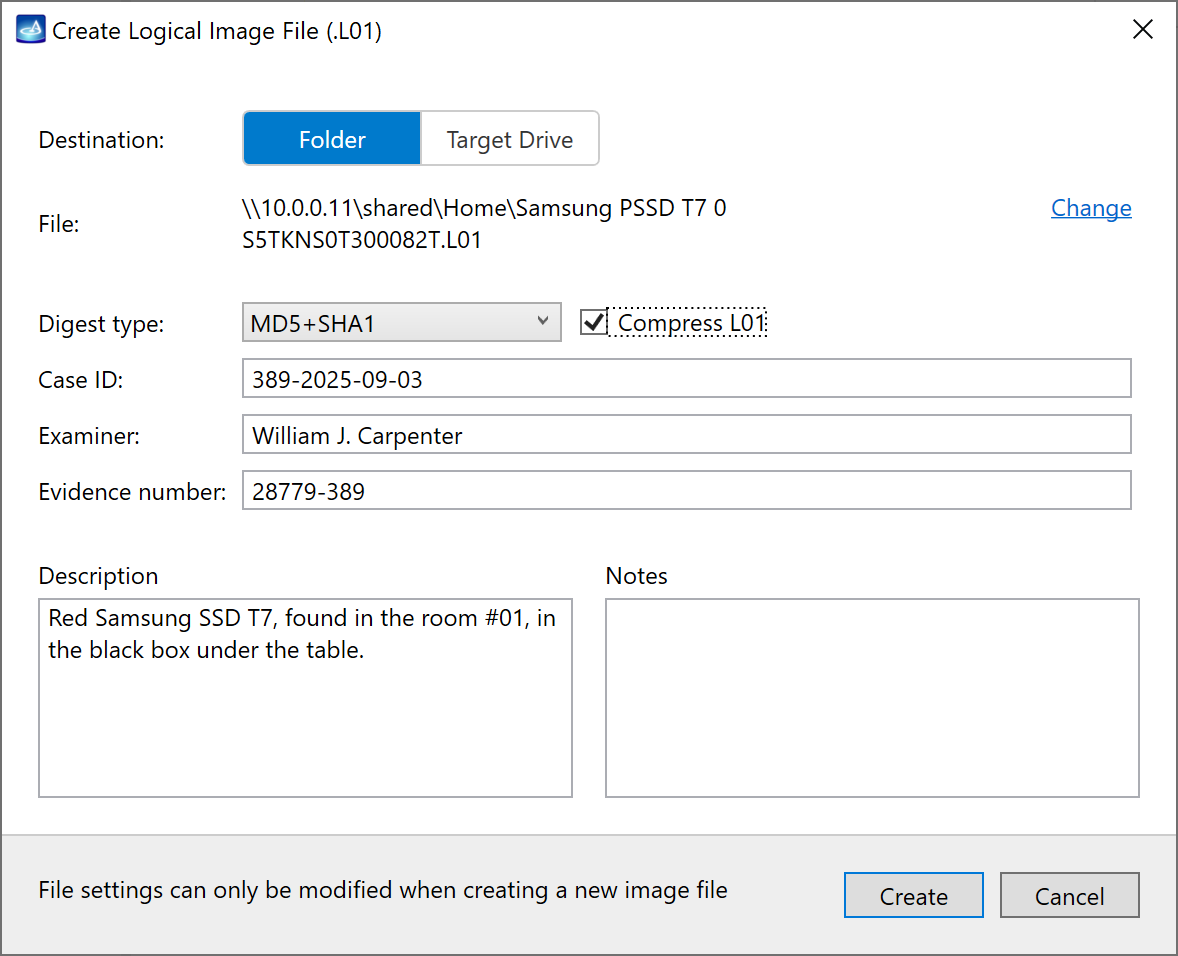
Although you can manually select partitions, folders and files you want to image, Insight also offers powerful and flexible built-in filters:
- All or selected partitions
-
Predefined file types:
- documents
- pictures
- video
- audio
- emails
- archives
- databases
- financial
- security keys
- virtual machines
-
Predefined folder types:
- User folders
- OS folders
- Time spans: when files were accessed, created or modified
- File size: from 1 byte to infinity
- First bytes of file (file signatures)
- Hash: MD5, SHA1, SHA224, SHA256, SHA384, SHA512
- Files with discovered artifacts
Pause and resume
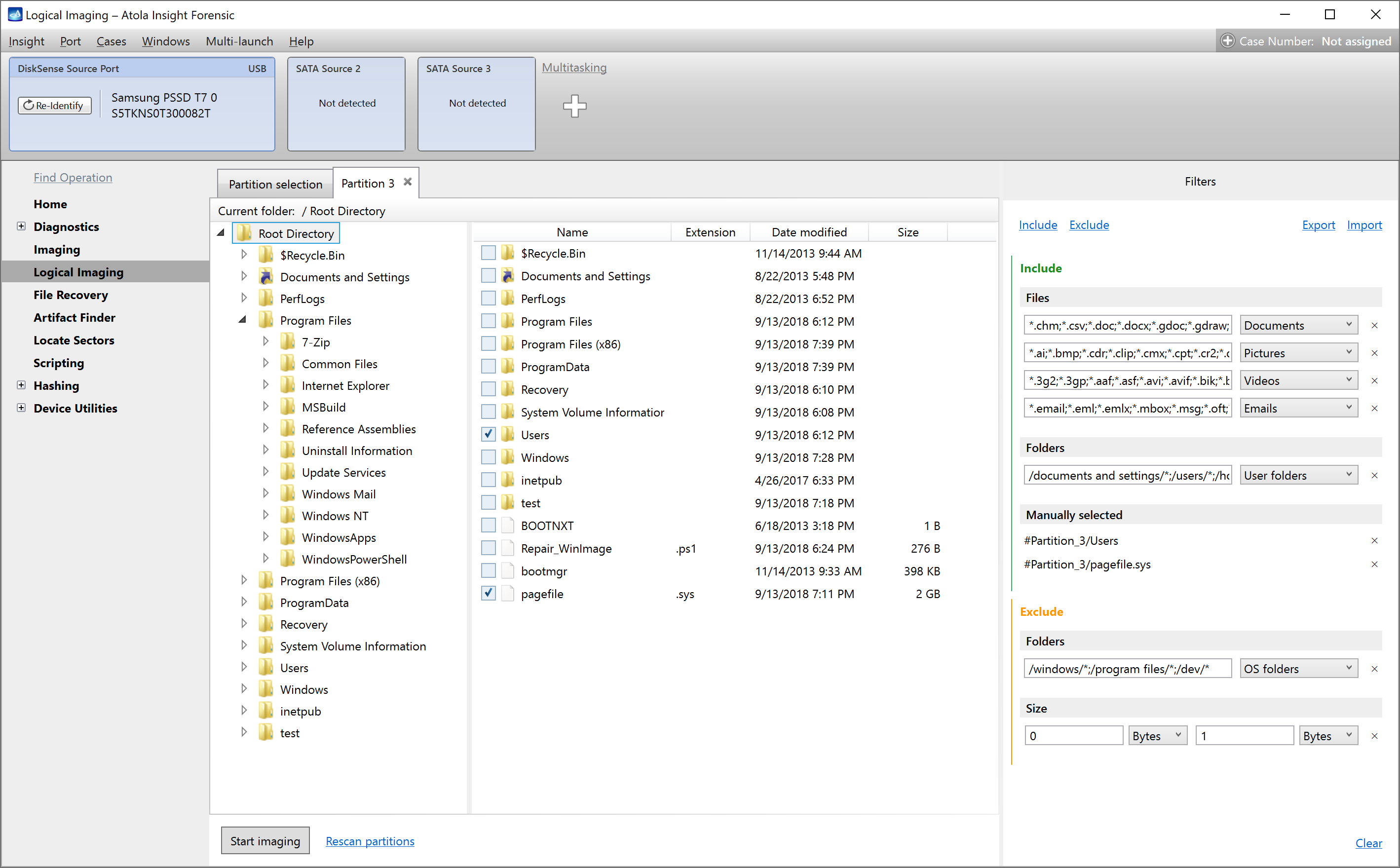
Pause any running logical imaging session when needed. After pause, Insight reliably saves all session settings and progress.
Seamlessly resume logical imaging from the exact point where you’ve stopped.
The Pause and resume feature could be helpful when you need to:
- Turn off your equipment and leave the lab for a night or
- Continue a logical imaging process at a different location
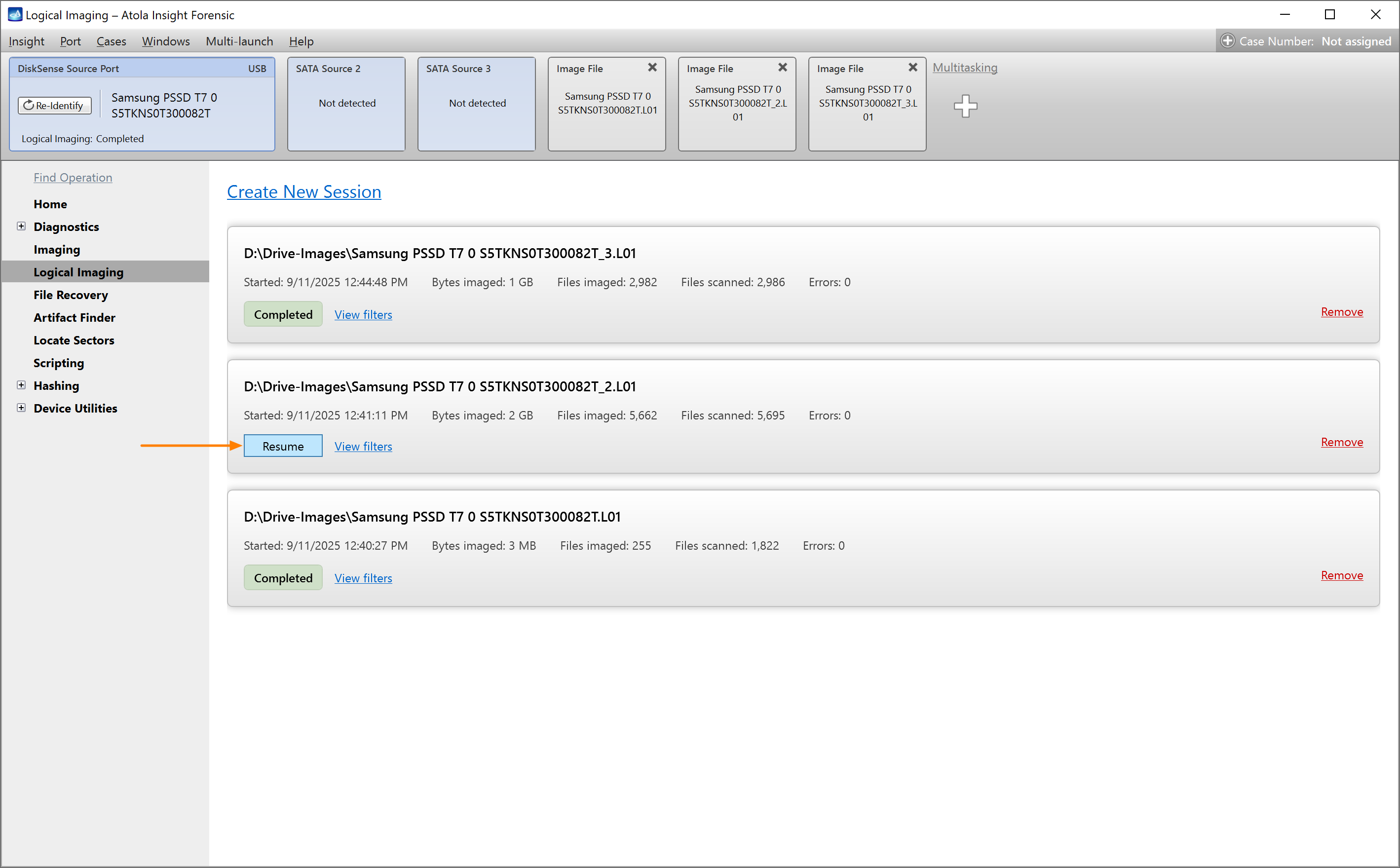
Image files with artifacts
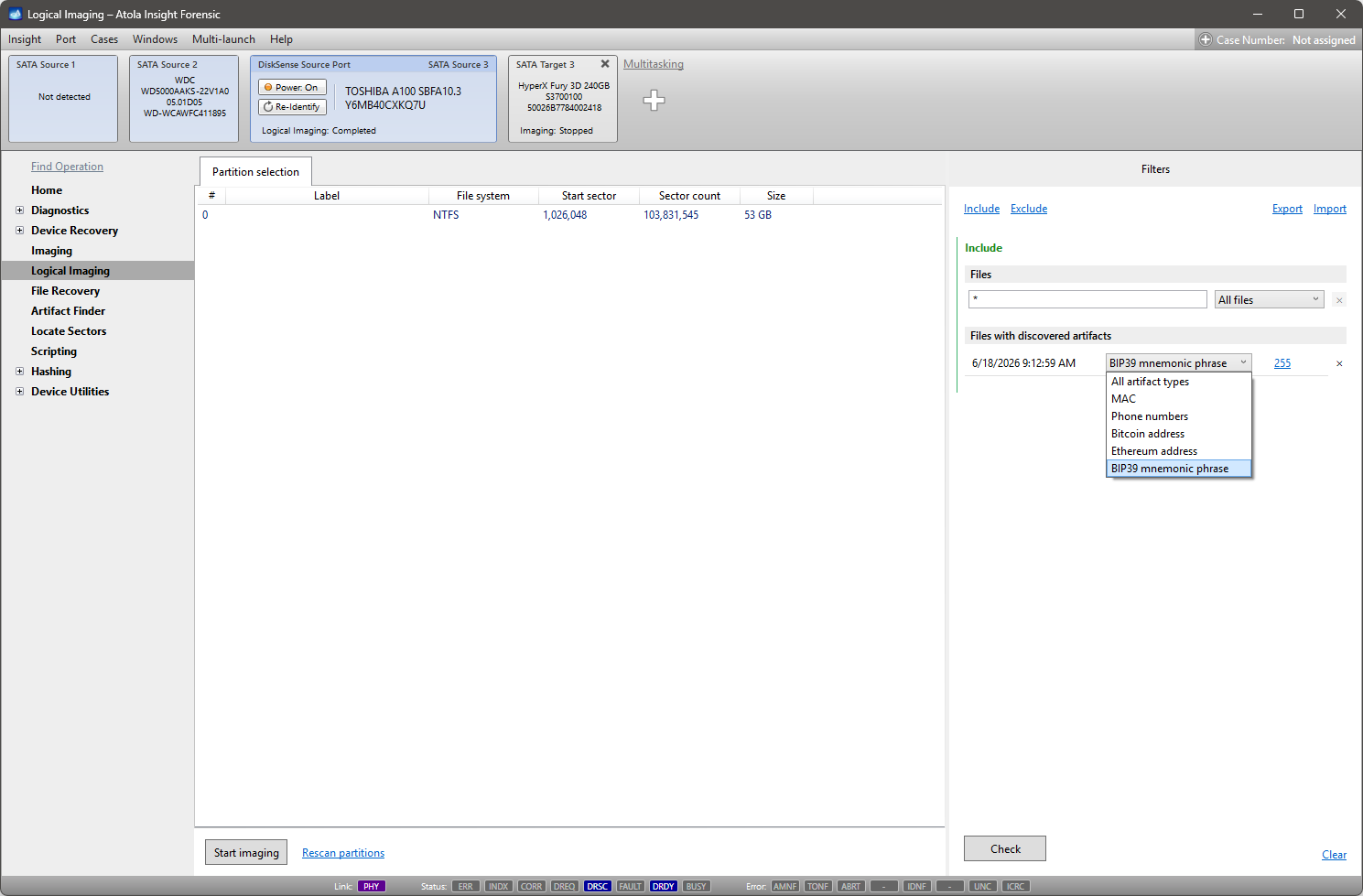
Combine the power of artifact search with logical imaging: the Files with discovered artifacts filter selects only the files whose sectors contain detected artifacts – such as emails, URLs, custom keywords, crypto wallet addresses, BIP39 mnemonic phrases.
Here is a fantastic way to shorten your time to evidence:
- Start a physical imaging session with artifact search enabled.
- Notice the artifacts found in raw sector data.
- Pause the physical imaging session for a while
- Apply the Files with discovered artifacts filter: quick action takes you straight from the imaging results.
- Generate a logical image containing only the relevant evidence.
- Resume your physical imaging session.
Read the detailed manual: Image only files with artifacts.