Atola TaskForce

We are launching Atola TaskForce. The revolution is here

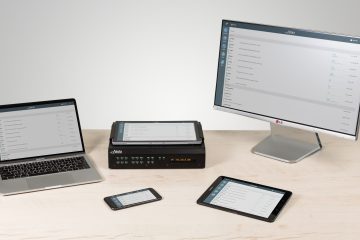
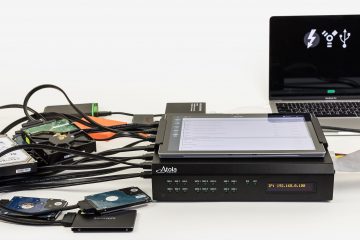
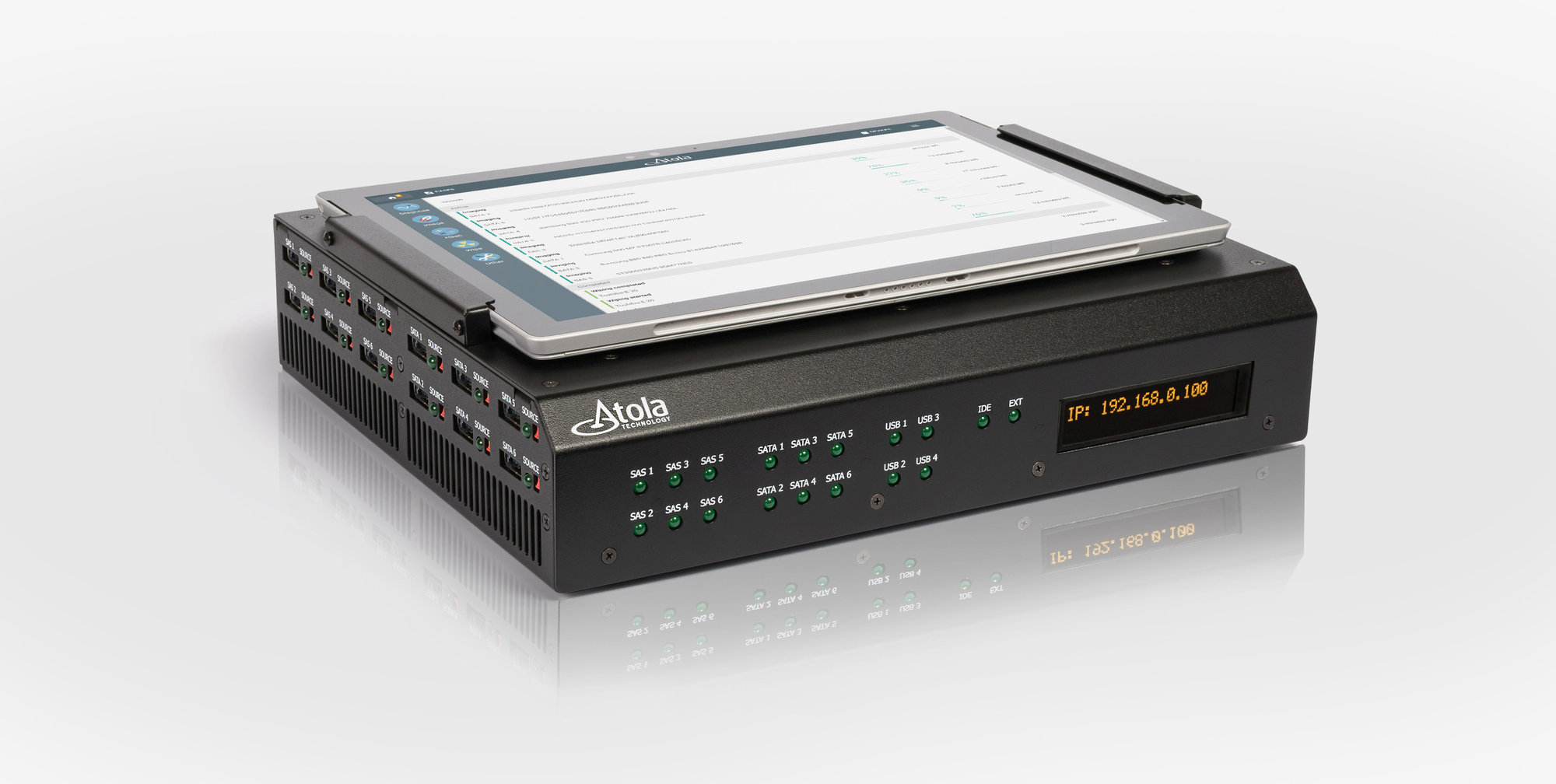
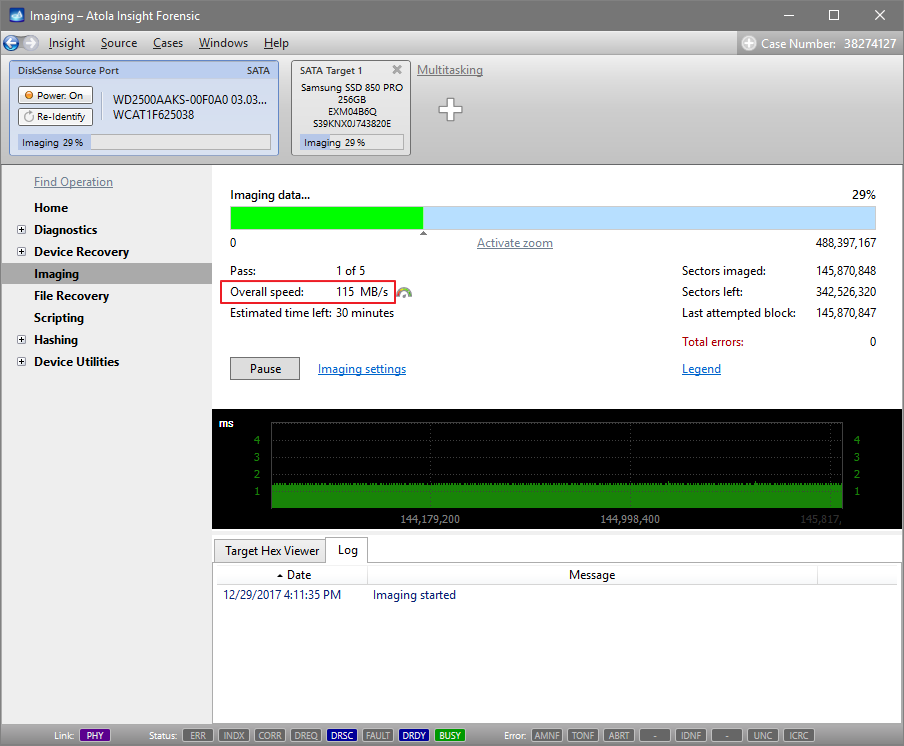
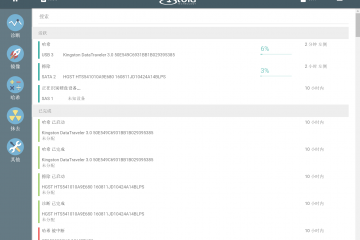
We are very pleased to announce the official launch of our new fantastic product – Atola Taskforce. What is Atola TaskForce? It all starts with a routine problem. The problem that people face every day spending more and more effort to solve. During our conferences and private communications with customers throughout the last 3 years, we found the most critical issue is: Evidence acquisition time that has been increasing every year Atola TaskForce is designed to solve this challenge. TaskForce enables the simultaneous imaging of 8 or even more drives reaching the total performance of 15 TB per hour. This new power hides in hardware that has the compact dimensions of Read more…

Atola Insight Forensic

The speed of imaging with Atola Insight Forensic

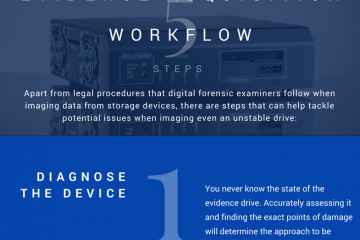
As we travel to exhibit at forensic events worldwide, we usually bring some of the fastest SSDs (usually Samsung 850 Pro) with us to show the speed at which they can be imaged with Atola Insight Forensic (on these drives, it constitutes around 500 MB/s). At the same time, we feel that in this blog we have missed the opportunity to demonstrate exactly how fast Insight can image different types of hard drives, solid-state drives, USB flash memory, etc. We test our units on a wide range of storage devices. This time we imaged a few of them and cross-checked the speed with userbenchmark.com, where you can find detailed info on the Read more…

SSD imaging speed
Atola Insight Forensic

Artifacts: Image & analyze on the fly

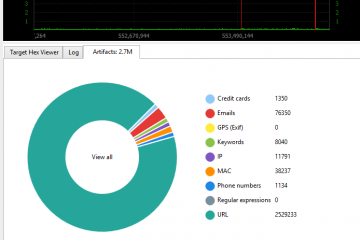
Imaging is a time-consuming part of the evidence acquisition process, especially when dealing with damaged drives. Even though Atola Insight Forensic is the fastest forensic imaging tool in the world (there is literally no penalty on a drive speed when you image it with Insight!), we want to help expedite forensic process even further. That is why our team of engineers has developed the artifact search feature, which allows analysis of data from an evidence device during imaging. Artifacts settings 1. Go to Imaging category of the left-side menu 2. Click Create new session link and select the target device 3. In Preset line click Show settings link 4. Open the Read more…

Imaging artifacts on the fly
Artifact search
Atola Insight Forensic

Atola Insight Forensic 4.10 – Search of forensic artifacts in the course of imaging

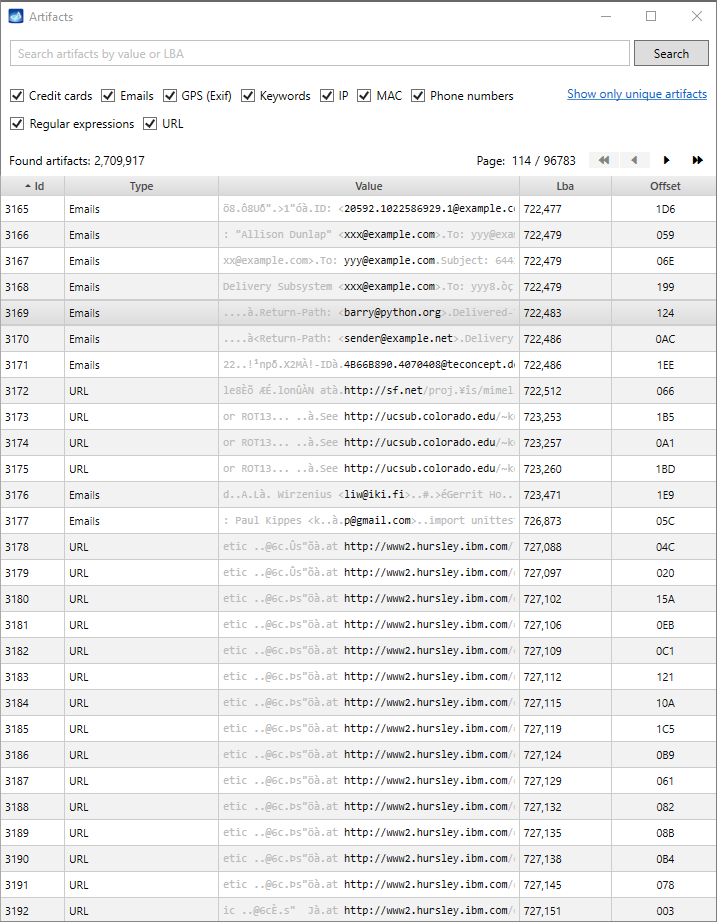
On December 5 Atola Technology releases Atola Insight Forensic 4.10. The key feature is the search of artifacts capability while imaging a source evidence media. It allows to search the source drive for credit cards, emails, URLs, IPs, GPS coordinates, phone numbers, keywords etc. in the course of imaging. This feature will help forensic specialists expedite investigation in urgent cases or when dealing with a damaged drive that takes hours to image. The full list of Atola Insight Forensic 4.10 changes can be found here: Atola Insight Forensic Changelog. Imaging settings now have a new Artifacts tab where different types of artifacts can be selected and lists of keywords or regular expressions can be Read more…

Atola Insight Forensic

Calculating segmented hash of a damaged drive

When you work with a damaged device, and imaging can only be performed in multiple passes due to bad sectors or physically damaged areas or heads, it is impossible to calculate linear hash of the drive. This can become a serious challenge if you need to prove evidence integrity in the court of law. And it is for such cases that Atola Insight Forensic has Segmented hashing functionality. According to the recommended workflow, run Automatic checkup of the evidence drive. If the drive has hardware or bad sector issues, it is likely that imaging will not be completed within one pass, and you can calculate the hash for such drive only Read more…

Atola Insight Forensic

Tracking a drive’s SMART table status before and after imaging

Being able to evaluate the drive’s state before it has exhausted its resources can make all the difference between a case won or a case lost in a court of law. SMART table is a valuable source of information about a hard drive’s health. SMART (Self-Monitoring, Analysis and Reporting Technology) provides stats of a drive’s operation, thus helping predict its future failure. Making a definitive conclusion based on the indices in SMART table is not easy: not all parameters are critical, it is usually a combination of bad values of a few parameters that point to a trouble, time factor plays a role too (how fast has the state of Read more…

Atola Insight Forensic

Q&A during Techno Security and Digital Forensics Conference in San Antonio

We have just returned from Techno Security & Digital Forensics Conference, which took place on September 18-20 in San Antonio, Texas. Here are some of the questions asked at this event, which we would like to share with you, along with our answers to them. Should you have further queries, please don’t hesitate to write a comment below or send us a message here. Question: Is there a reason why segmented hashing should be used to calculate hash of drives that are not damaged? Answer: Yes, segmented hash allows you to verify evidence on the drive and its image even if either of them becomes damaged at some point in Read more…

Atola Insight Forensic

Thunderbolt extensions ready for shipping!

We are pleased to inform you that we have a bunch of Thunderbolt extension modules in stock that are ready to be shipped. The first extension modules are already on their way to the early birds who have placed their orders before they became available. Thunderbolt extension module enables forensically sound imaging and other operations on all generations of MacBooks. Supported interfaces and functionality Thunderbolt extension enables Insight to work on all MacBooks with the following interfaces: FireWire Thunderbolt 2 Thunderbolt 3 (2016 – 2017 models) With the help of Thunderbolt extension module you can perform such operations: imaging hash calculation hash verification comparing media scan file recovery 2016 and 2017 generations Read more…

Atola Insight Forensic

Exporting and importing cases from one computer to another

It is possible to transfer all or some of the cases stored in one Insight’s case management system to another one. The only requirement is that both computers have the same version of Insight installed. Whenever cases need to be transferred from one computer to another one, start by exporting the cases. 1. Go to Cases category of the top level menu and click Export. 2. In the Export Cases window select folder where the cases should be stored, then select the cases you would like to be exported and click Save button.3. The cases are now saved as a package in a zip file (with the default name Cases.Package.zip), which Read more…