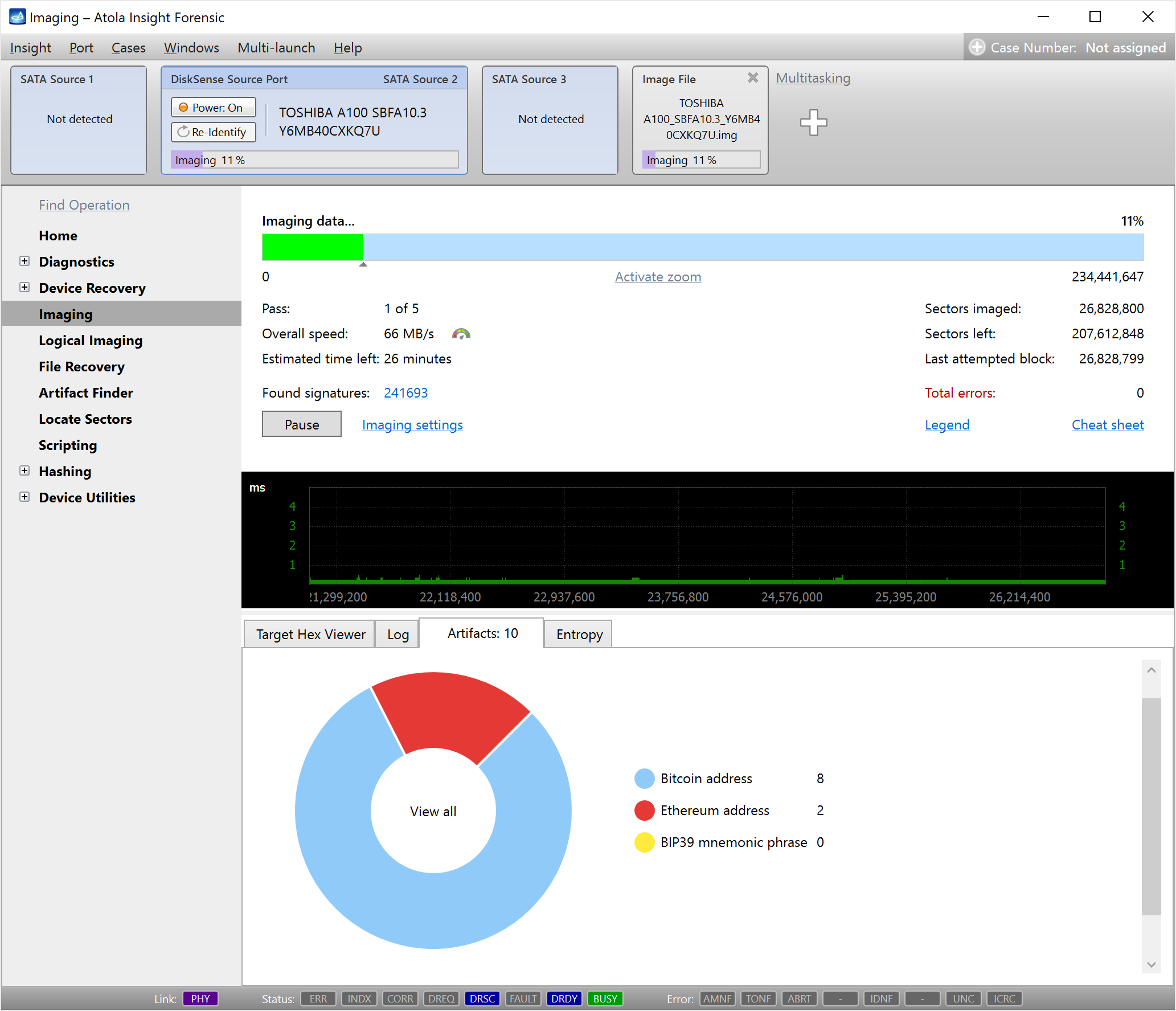
Picture this: you’re performing a physical drive imaging and notice a bunch of Bitcoin and Ethereum address artifacts. You want to analyze them ASAP, but creating the full drive image could take hours.
With Atola Insight Forensic 5.8, you can extract all files with found artifacts in L01 format on the spot, saving yourself a ton of time. Here’s how it works.
Step 1: Search for artifacts during imaging
When starting a new physical imaging session, enable artifact search in the imaging settings.
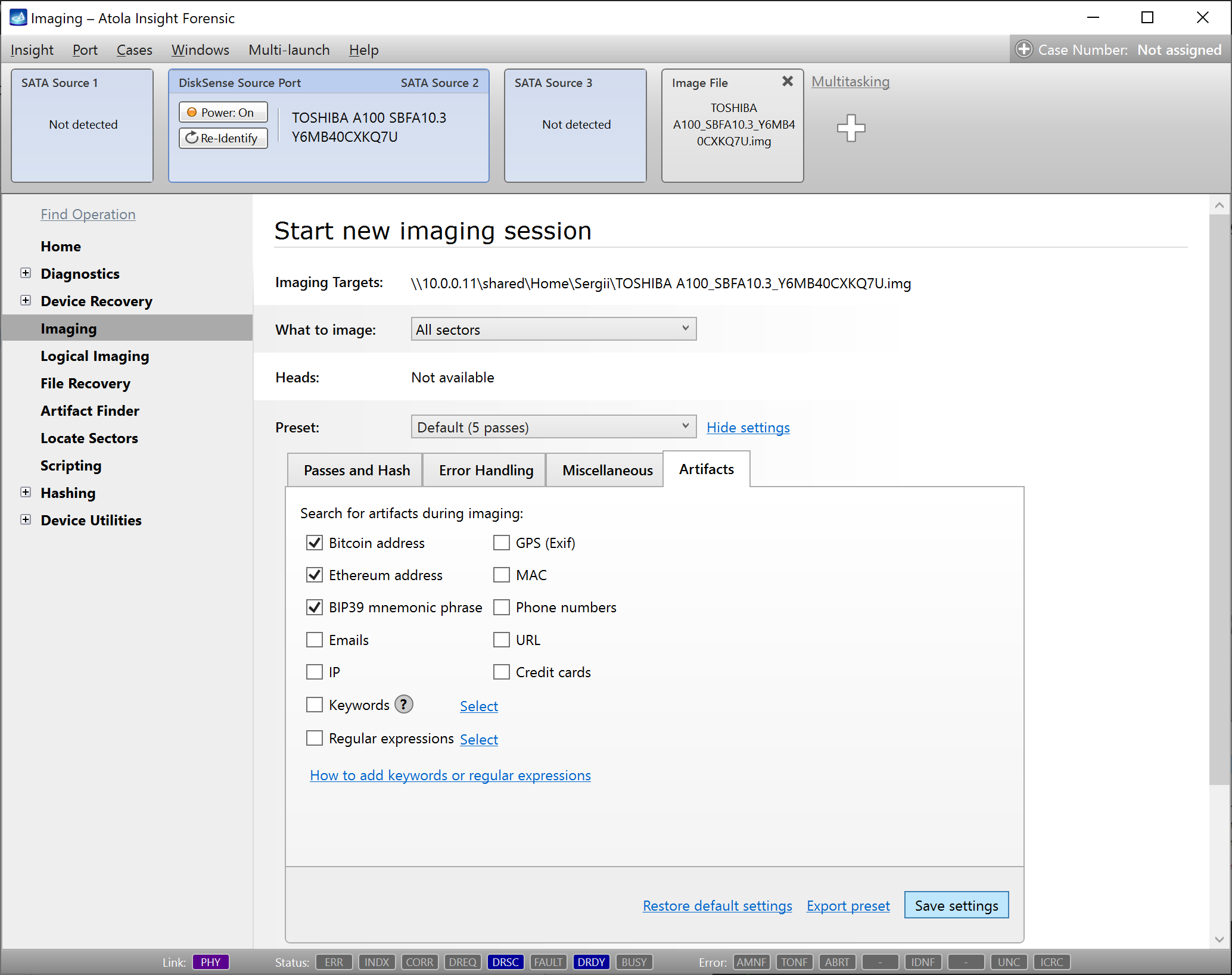
During imaging, Insight Forensic will look for the artifacts you’ve selected, including:
- Bitcoin or Ethereum addresses
- BIP39 mnemonic phrases
- Keywords
- Regular expressions
- GPS coordinates
- Phone numbers
- Credit cards
- Emails
- IPs
- MAC addresses
- URLs
In our case, we’re interested in crypto wallet addresses and mnemonic phrases:
Step 2: Pause the session and start logical imaging with the new artifacts filter
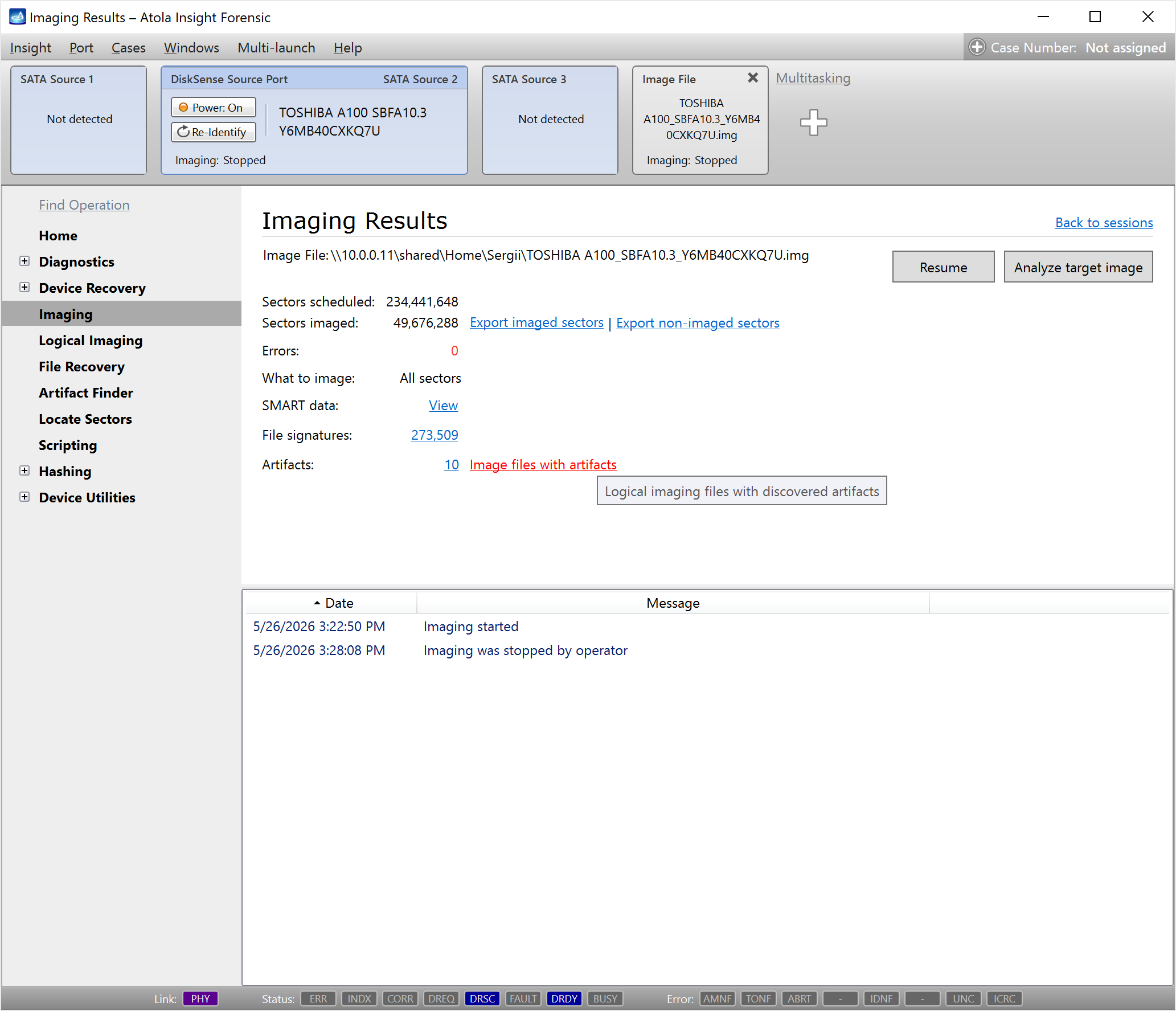
After you pause your current physical imaging session, on the Imaging Results screen you’ll see the number of found artifacts and the “Image files with artifacts” link.
When you click the link, Insight will take you to the Logical imaging module and apply a custom filter for the artifacts discovered during your physical imaging session.
This is a new feature of Atola Insight Forensic 5.8. It allows to select sets of artifacts found in sectors after they are detected:
- in the course of imaging session
- after one or more additional runs of the Artifacts Finder module
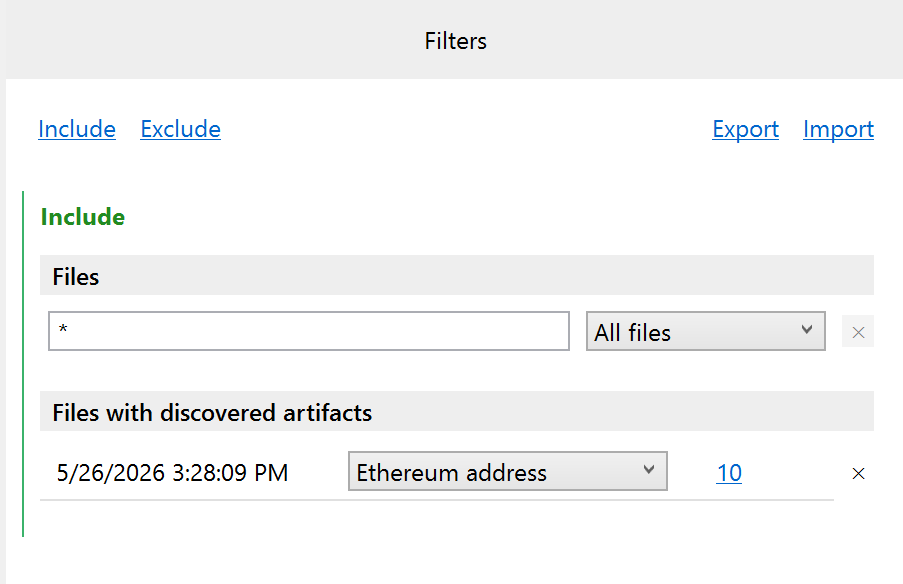
Now all you have to do is start the Logical imaging session with the artifacts filter applied.
After logical imaging is completed (and it will happen much faster than the creation of a full drive image), you’ll have only the selected files of interest in a forensically sound L01 container, ready for immediate analysis.
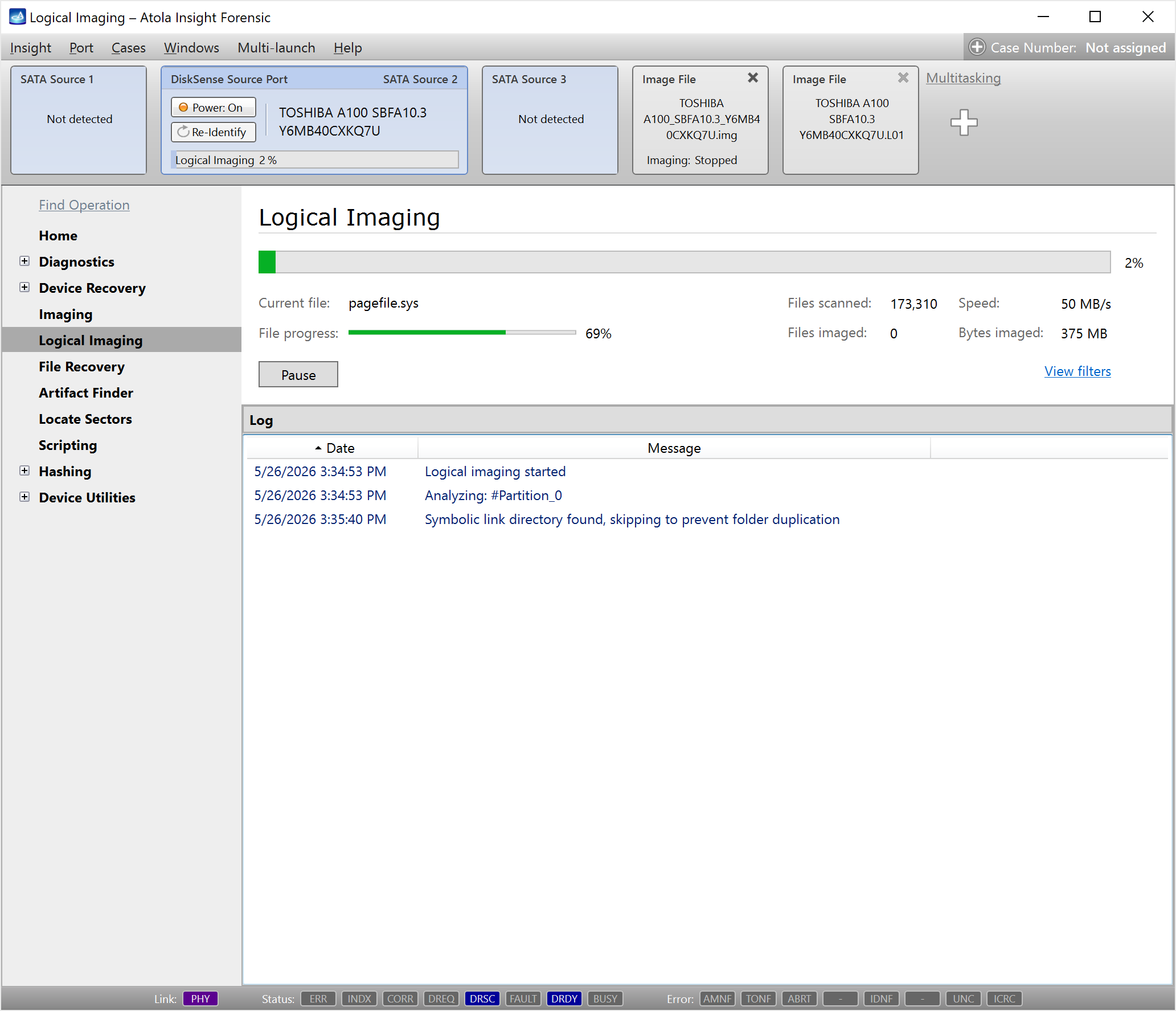
In our case, there are two artifacts with Ethereum wallet addresses inside pagefile.sys. You can then run MemProcFS or your other preferred tool to analyze the memory pagefile.
And don’t forget to resume the physical imaging session! It will run in the background while you’re already examining your hand-picked evidence files.
Shorten your time-to-evidence!
Download Insight Forensic 5.8
To get access to all new features, download updates from our website.
Where to buy
To order Atola Insight Forensic system or extend your subscription, contact Atola Technology directly or find a distributor near you.
Having an active subscription, you can use the latest firmware, request a free replacement of a device, extension module, or cable, as well as free training and technical support.
To get more information about Atola Insight Forensic or to discuss the details, please contact Atola Technology sales department:
- Call us: +1 888 540 2010, +1 416 833 3501 10AM-6PM ET
- Or email us
Insight 5.8 Changelog
New Features
Imaging:
- New Image files with artifacts quick action on the Imaging results page.
- New View format example link to explain CSV and LST file formats for the ‘Sector list’ imaging option.
Logical imaging:
- New Files with artifacts filter for drives whose sectors contain detected artifacts.
- New Check button to review results of your logical imaging filters before starting a session.
- New Resume button on Logical imaging results screen.
- The defaults for OS folder filters extended with options like /ProgramData, /Applications, /System, /bin, /boot, /sbin, /lib, etc.
- Reduced memory usage during Logical imaging.
- Updated filter behavior:
- Manually selected files are copied in full and always;
- Manually selected folders are subject to the filter or filters, if any were applied.
Locate sectors. Added analysis of sectors that belong to an LVM, APFS, or ZFS container without a partition.
The overall progress of all active processes is now shown on the Insight icon in the Windows taskbar.
Bugfixes
Imaging:
- A non-compressed segmented E01 file became corrupted after adding a new imaging session.
- A compressed E01 file became corrupted when opened via Analyze target image.
Logical imaging:
- A folder absent from the source was created in the L01 image.
- The Manually selected filter did not work correctly for folders sharing part of the path.
- Logical imaging of files with artifacts was interrupted after an error.
- Several minor issues with L01 and Logical imaging.
Locate sectors:
- A copy of the NTFS boot sector was detected as a free sector of the partition.
- Ports can no longer be closed while the Locate sectors process is running.
- Multi-line CSV files with comma-separated ranges were not loaded.
- Miscellaneous reports were not removed from the list when the feature was disabled.
- Error when a handle to the sector list file was open.
- Locate sectors stopped at read error without adding the corresponding message to the log.
Diagnostics:
- Can’t read SMART resulted in a red overall result. Must be a yellow (warning) type of result.
- IDE drives: Green overall result even when this message is shown: ‘All verification commands failed. Possible reason: firmware damage’.
- Automatic checkup: quick search of file systems did not start if previous stages had warnings.
- Exception during diagnostics on a specific SAS drive (HUH728080AL4200).
- A rare error in the logs during diagnostics of a disk with non-BitLocker partitions.
File systems:
- Cyrillic characters were displayed incorrectly in NTFS file and folder names.
- Cyrillic characters were incorrectly converted to Hex values.
Verify segmented hashes. Incorrect error message when a handle to the file was open.
Reading an E01 file from a USB Target drive did not work.
Raw split files with gaps were processed incorrectly in all read processes.

- TaskForce 2026.10 update: Compare module and Seagate FARM log - October 15, 2026
- Image only files with artifacts in Insight Forensic 5.8 - June 18, 2026
- 25G Fiber extension + TaskForce 2026.2 update - March 26, 2026

Sergiy Pasyuta
Sergiy is an experienced technical writer with a passion for simplifying complex concepts in user manuals. With a keen eye for detail and a knack for clear communication, he crafts articles that guide users through our products’ functionalities.