Diagnostics summary with HPA and DCO limitations
Atola TaskForce

Lifting HPA and DCO with Atola TaskForce

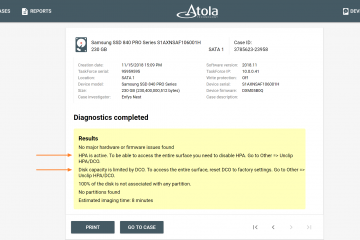
Host protected area (HPA) and device configuration overlay (DCO) are special hidden areas. They were developed as a feature by hard drive manufacturers for secure storage of vendor utilities or to make a drive appear to have smaller capacity than the drive actually has. But for a while now, proficient users have known how to create and modify them, store data there, etc., by using open source tools. The ability to detect such areas on a drive and image the whole drive space, including HPA or DCO-protected parts, becomes critical for forensic examiners. Otherwise, the evidence they get may be incomplete and lead to inaccurate investigative conclusions. Once you plug a Read more…

Atola TaskForce

Calculating hash in the course of imaging

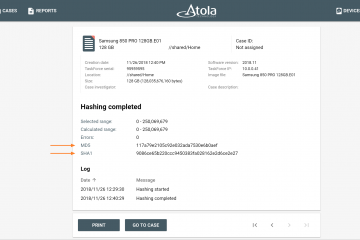
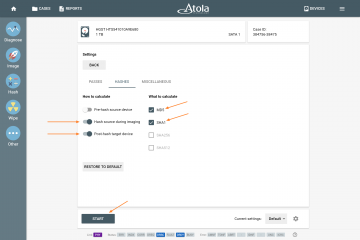
Atola TaskForce supports hash calculation of both the evidence drive and the image in conjunction with imaging. We have developed highly flexible functionality to help optimize evidence acquisition process to fit one’s internal procedures while avoiding further damage to fragile media. To calculate hash of both the evidence and the image: Click Image category of the left-side menu Select the Source device and the Target device or file Click Change button in the Settings summary page In the Hashes tab there are three checkboxes: Pre-hash source device Hash source during imaging Post-hash target device   Multiselect is available, which allows a user to use all three of these options. However, Pre-hash source Read more…

Calculating hash during the imaging
Atola events
Company news

The 2018 Atola Year in Review

2018 was an amazing year for Atola Technology! We look back at this important and eventful year and want to thank everyone who helped make it very special.   Atola TaskForce launch First and foremost, we have launched Atola TaskForce, a breakthrough acquisition tool for the digital forensics market. It is capable of imaging 12 or more evidence drives simultaneously at speed exceeding 15 TB/hour!   The development process for this tool was as tough as it was fun for the team. And we are extremely happy with the result. It is already being used by our customers in the field as a standalone tool and in the lab by Read more…

Atola TaskForce

Atola TaskForce 2018.12 release is out!

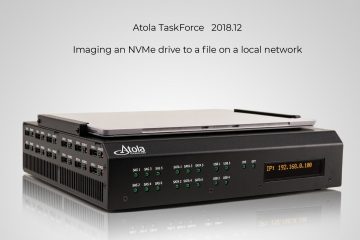
Welcome to the December release of Atola TaskForce! In this firmware version you will enjoy: NVMe support: imaging of NVMe drives using M.2 extension module Imaging of all sectors with data: skip empty sectors and image data only, one partition at a time Improved interface: clickable and editable elements are now easily recognizable and other features and improvements. NVMe support We are pleased to announce NVMe support in TaskForce! NVMe is the latest and greatest technology in the world of storage devices. NVMe drives achieve unprecedented speeds, which has made them very popular devices for laptops, desktop and corporate computers alike. NVMe drives can now be imaged with the help of our Read more…

Imaging an NVMe drive
Conferences

Best 30+ forensic conferences in 2019

The new list of DFIR 2023 events is here: Top digital forensic conferences in 2023 The events at which Atola Technology or our partners will be exhibiting are marked with an asterisk (*). last updated October 7, 2019 Forensic events 2019 Conference Date Location Region Registration fee CyberTech Israel January 28 – 30 Tel Aviv, Israel Middle East $810 Forensics Asia Expo January 29 – 30 Marina Bay Sands, Singapore Asia Pacific GBP 650 NSA Winter Legislative & Technology Conference February 9 – 12 Washington D.C. North America $570 22nd European Police Congress February 19 – 20 Berlin, Germany Europe €895 CHIA Conference February 26 – March 1 Las Vegas, NV Read more…

John Craham, director of sales at conferense
Imaging summary page
Atola TaskForce

Imaging an evidence drive to 5 targets

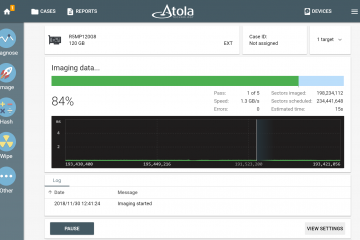
Atola TaskForce allows imaging to up to 5 targets at a time. The targets may include E01 or RAW (.img, .dd) file on a network server target drive plugged into one of 18 TaskForce ports To start an imaging session that includes 5 targets: 1) Click Image icon in the left-side menu 2) Select source and target devices. To create a target file, click Select file icon in the target drive menu and click Continue button. 3) In Select image file, open the folder on the server where you want the file to be created and click the Plus icon. 4) In Create image file pop-up window, type in a Read more…

Company news

Atola is growing again!

We are again looking to extend our team of engineers! A new Hardware Engineer will join our Hardware team with the ever-increasing amount of work assembling units and developing new hardware solutions. We would like to extend and enhance our existing QA team and its skills set with a new QA Automation Engineer. Finally, we look to find a Software Engineer with strong knowledge of modern programming languages and frameworks to help us develop the new great features for Atola TaskForce and Atola Insight Forensic. We look forward to greeting the new reinforcement to our team who would be enthusiastic, curious and gracious, skilful and hard-working. Atola provides a friendly and stable working Read more…

Atola TaskForce

Finding reports in TaskForce

TaskForce automatically creates reports for every single action applied to each drive connected to it. The system also allows browsing through all cases and reports, without corresponding devices being connected to the unit. The reports are listed and can be easily retrieved in different parts of TaskForce software. 1. Via case page All reports related to the case are listed at the bottom of the case page. Scroll down and turn pages to view all the reports, sort them by date or by title, use the search bar to look for specific reports by their titles. To open a report, click the respective line. 2. Via View reports If you need Read more…

Atola TaskForce

Release of Atola TaskForce 2018.8 is here!

We have just released version 2018.8 of Atola TaskForce software. This release includes over a hundred of new features and bug fixes. Among them are some advanced custom settings. For organizations that need to ensure that imaging is always performed with special settings, we have made it possible to create a special preset, which can also be exported from one TaskForce device and imported to another one. Create custom settings: Click Image icon in the left-side menu and select source and target devices Click the Imaging preset management icon in the right bottom part of the window Select Create option Type in the name of the preset and click Create To adjust Read more…