Taskforce appearance
Business

How we create Atola products

Hi! I am Vitaliy Mokosiy, CTO in Atola Technology. I have been working here with great enjoyment and enthusiasm since 2008. Today I am taking this opportunity to shed light on the development process of Atola products, how it drives me as well as our whole dev team. We proudly presented Atola TaskForce to the forensic community almost two years ago. While the volume of digital evidence inevitably continues to grow, every day TaskForce imagers are out there helping save a great deal of time for our customers by imaging at 15 TB per hour of total performance. From a user’s perspective it is simple: you plug 12 SATA evidence Read more…
Atola TaskForce

TaskForce imaging speed

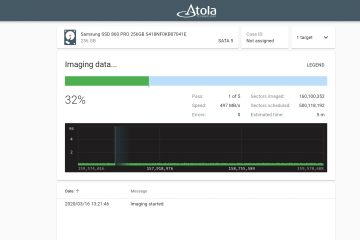
Atola TaskForce is designed to be the fastest forensic imager. It allows imaging multiple drives simultaneously at the overall speed of 15 TB/hour. The individual imaging sessions run at the top native speeds of most drives. To test TaskForce imaging speed, we used various models of SSD, HDD & USB devices and compared the performance achieved with the read speed in sequential mode (sectors read and written to in linear order) at userbenchmark.com. NB Imaging speed is limited by the speed of the slowest of the devices, participating in the imaging session. Therefore, the slowest of the two speeds (either the read speed of the source or the write speed Read more…

Atola TaskForce fast forensic imager
Creating image file
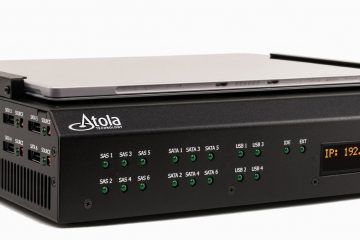
Atola TaskForce

TaskForce 2020.2 release with E01 segmentation

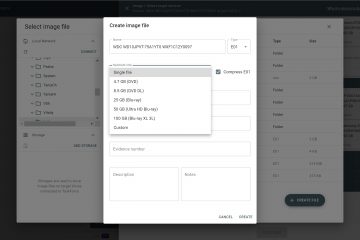
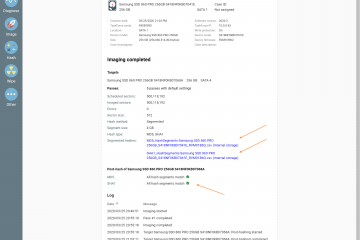
The key feature of this release is imaging to segmented E01 files (to E01, E02, E03 and so forth). For many forensic examiners, E01 segmentation makes sense for a more convenient way of storing data. Some back up the segmented images on BluRay drives, others want to avoid repeated attempts to copy large files to their server due to network failures.  E01 segmented images When selecting E01 file as a target, you will notice a new Segment Size dropdown. Click it to switch from a single E01 file to a segmented image. The segment size can be equal to one of the popular defaults or customized by the user. Segmented Read more…

Atola TaskForce

Imaging to a file on an encrypted drive with TaskForce

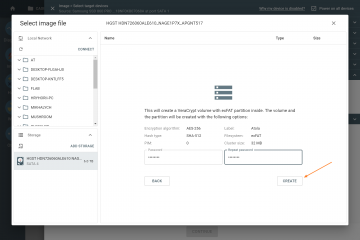
With newest Atola TaskForce 2020.1 firmware, it is possible to image into files on an encrypted target drive using VeraCrypt for data encryption. Multiple target drives can be encrypted for the same or different sessions.After you have connected the source drive to a port in Source mode, take these steps: 1. Click on Image icon in the left-side taskbar 2. In Select source device panel, select the evidence drive 3. In Select target device menu, click on the tile in the File section 4. In Select image file window, click Add storage Click the link Create Image File on Target. 5. In Select device panel, choose the drive connected to Read more…

Creating VeraCrypt volume with exFAT partition
Atola team
Company news

Atola is Hiring!

We are currently looking for two awesome people to join Atola. Our Quality Assurance team needs reinforcement to join them in their ongoing effort of ensuring the stability of our software. In their turn, our Hardware Development team is facing the new challenge of expanding our production and expediting product design. We are accepting applications and holding interviews in the upcoming weeks with start dates in late February/early March. Candidates of different backgrounds are invited to apply! With the help of each new employee, we strive to continue building a team that is diverse in terms of both knowledge base and perspective, to create an inclusive and supportive environment for Read more…

Atola TaskForce

Atola TaskForce 2020.1: Imaging into a file on an encrypted target

We are pleased to announce the release Atola TaskForce 2020.1! This firmware’s key feature is imaging into a file on an encrypted target drive. Target drive encryption Atola TaskForce creates an encrypted exFAT partition using VeraCrypt with a 256-bit AES algorithm on the target drive, which the user locks with a password. This way you make your Storage drive encrypted. All image files remain safe and protected during evidence preservation or transfer.   Mounting an encrypted Storage for further analysis of its images To mount the encrypted volume for further use of the image file, a user can plug the target drive into a computer and use VeraCrypt soft. Use Read more…

Atola team
Company news

2019. A Year in Review

It is the final days of the year and we would like to reflect back on the fantastic year and a decade really! In 2019 we have done a lot! The incomplete but impressive record looks like this: 3 versions of Atola TaskForce firmware 3 updated versions of Atola Insight Forensic software Atola collaborated with Magnet Forensics to get our tools integrated our team has grown again we traveled the world to meet many of our customers TaskForce integration into Magnet AUTOMATE’s workflows In July, Atola TaskForce 2019.7 firmware introduced Web API built into TaskForce, which allows TaskForce integration into third-party automation tools. We collaborated with Magnet Forensics and in Read more…

Atola Insight Forensic

Atola Insight Forensic: Imaging into a file on an encrypted target

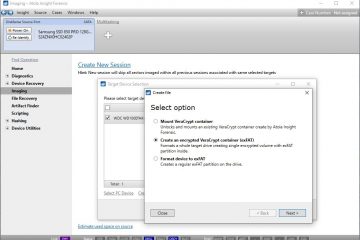
Atola Insight Forensic supports imaging into a file on an encrypted target drive, using VeraCrypt for data encryption.After your source drive is identified by the system, take the following steps: Go to the Imaging category in the left-side menu on the home screen;  Click the Create New Session link to launch an imaging session; Tick your target device;  Click the link Create Image File on Target. 5. In the pop-up window, select Create an encrypted VeraCrypt container (exFAT) option and click the Next button. 6. To complete the creation of a VeraCrypt volume, enter the password. 7. Enter YES and click Format to confirm formatting the drive to create the Read more…

Creating VeraCrypt Volume